How to Clock In Employees in Attendance (925Worksuite ERP (CORE SYSTEM)) 0 0
✅ 1. Overview
This guide explains how employees can clock in to record their attendance in the system. Clocking in ensures that work hours are properly tracked and linked to the correct location and work type.
✅ 2. Steps
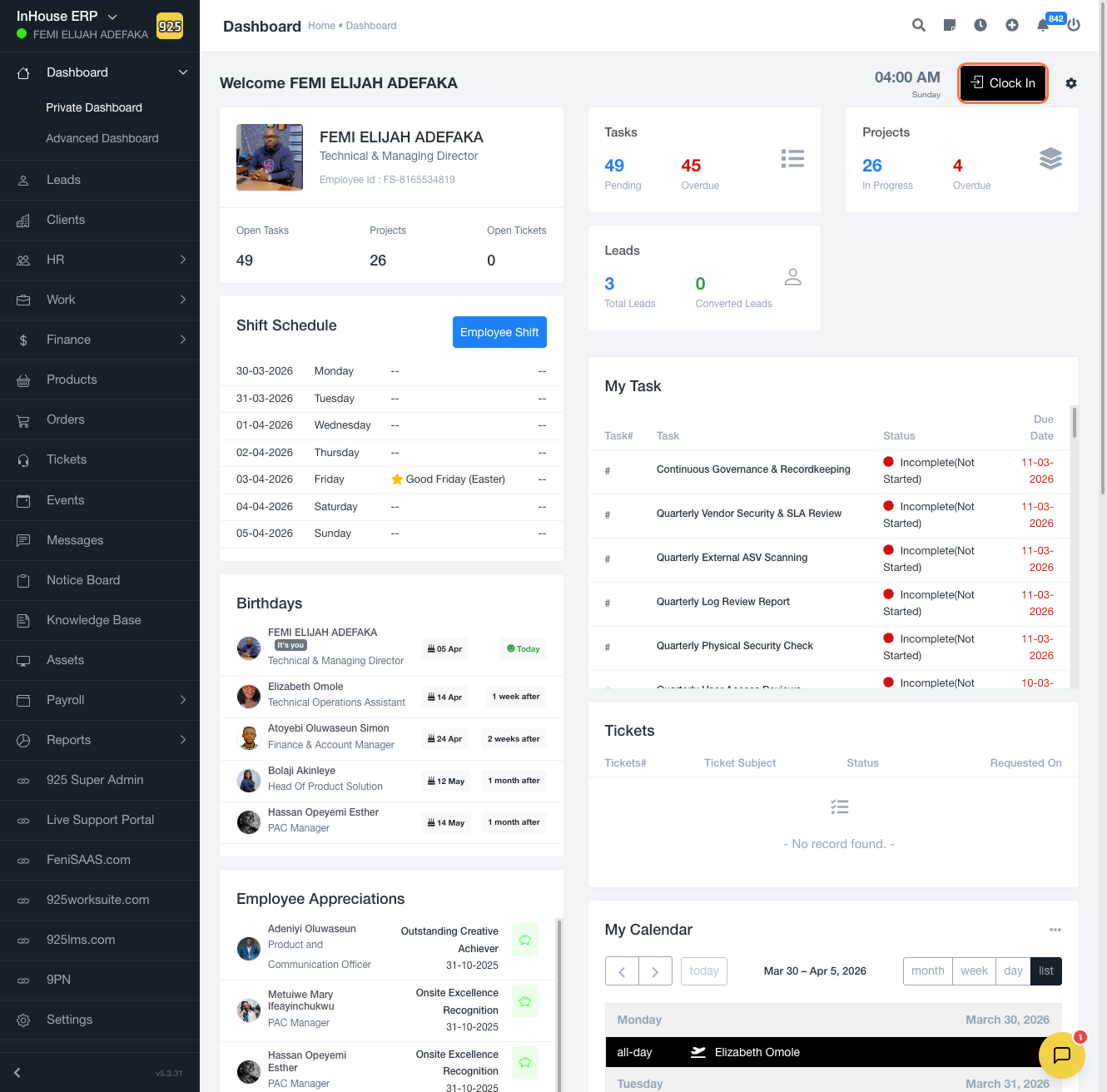
- Go to the Dashboard
- Click on Clock In
- Select your location (e.g., Lekki 1 - HQ)
- Choose your work type (e.g., Office)
- Confirm your selection
- Click Clock In to start your work session
(Captured via Tango workflow)
✅ 3. Expected Result
👉 Your attendance will be recorded successfully, and your work session will begin.
👉 The system will log your check-in time under the selected location and work type.
✅ 4. Common Errors (VERY IMPORTANT)
- Not selecting a location before clocking in
- Selecting the wrong work type (e.g., Office instead of Remote)
- Clicking clock in multiple times
- Network issues preventing submission
- Clock-in button not visible (permission or role issue)
✅ 5. FAQs (Search Boost Section)
Q: Can I clock in remotely?
Yes, if your organization allows remote work, select the appropriate work type.
Q: Why is my clock-in not recorded?
Check your internet connection or ensure you selected the correct location and work type.
Q: Can I change my clock-in after submitting?
No, you may need admin approval to modify attendance records.
Q: What happens if I forget to clock in?
You may need to contact HR or your manager to update your attendance.
Q: Can I clock in from mobile?
Yes, if the system is accessible via mobile or app.