How to Send Invoice in 925worksuite ERP
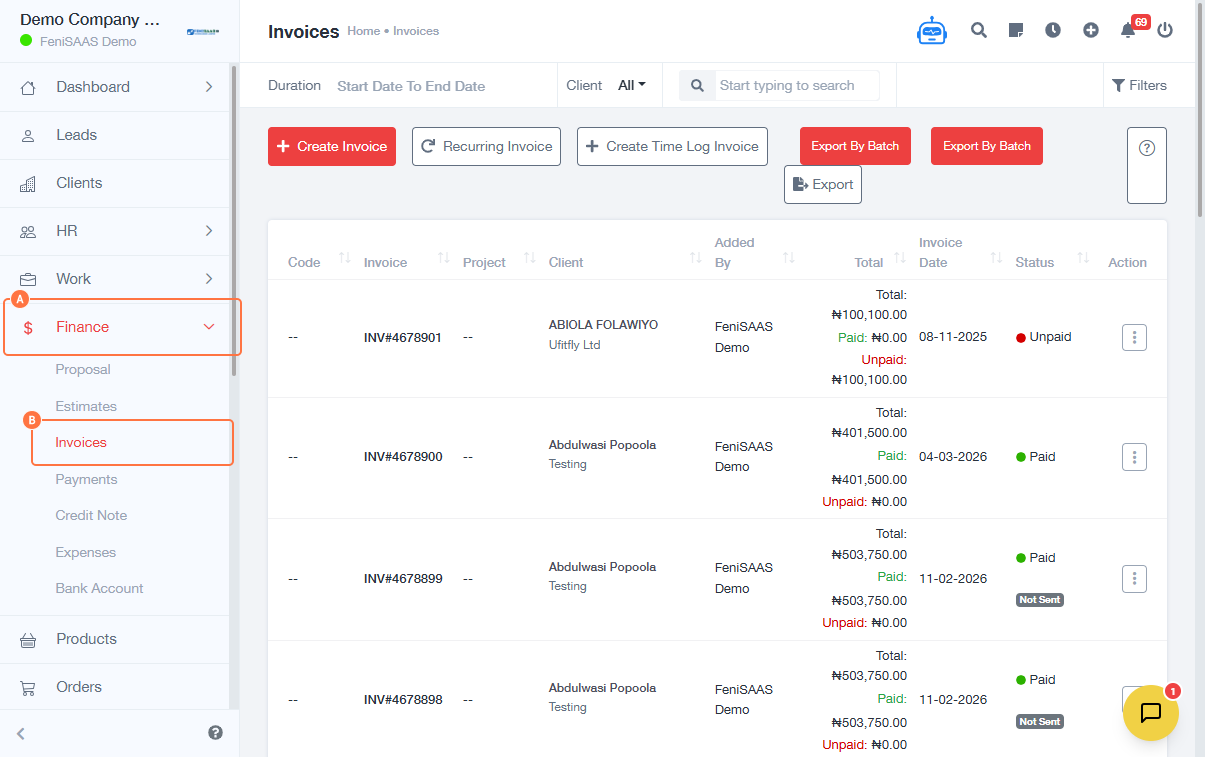
Overview
This guide explains how to send invoice files from the Finance module. It covers accessing invoices, sending them to recipients, and viewing or downloading invoice files.
Steps
- Go to Dashboard
- Click on Finance
- Click on Invoices
-
Select the invoice:
- Click on the invoice link
-
Send invoice:
- Click on Send
-
Access invoice file options:
- Click on the link to open invoice details
-
Download invoice file:
- Click on Download
-
View invoice:
- Click on the link
- Click on View
-
Alternative send method:
- Click on Action
- Click on Send
Expected Result
The invoice file will be successfully sent to the recipient and can also be viewed or downloaded for reference.
Common Errors
- Invoice not selected before sending
- Missing recipient details
- Failed download due to network issues
- Clicking incorrect invoice link
- Permission restrictions on invoice access
FAQs
1. Can I send an invoice multiple times?
Yes, invoices can be resent anytime.
2. Can I download the invoice before sending?
Yes, you can download and review the invoice before sending.
3. What format is the invoice file?
Typically, invoices are downloaded as PDF files.
4. Where can I view sent invoices?
All invoices remain available under the Invoices section.
5. What should I do if the invoice fails to send?
Check recipient details, network connection, and retry the send action.