How to Add Invoice Payment in Finance in 925worksuite ERP
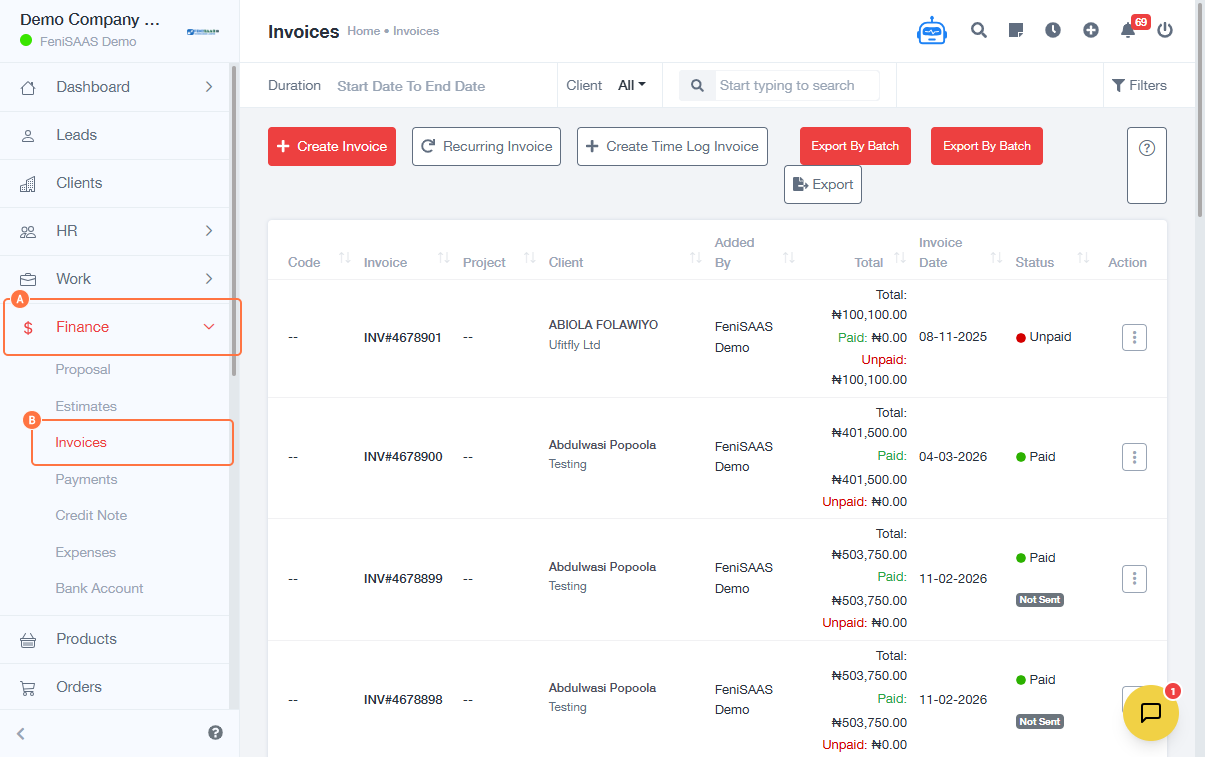
Overview
This guide explains how to record a payment for an existing invoice in the Finance module. It covers selecting the invoice, entering payment details, and saving the transaction.
Steps
- Go to Dashboard
- Click on Finance
- Click on Invoices
-
Select the invoice:
- Click on the invoice link
-
Add payment:
- Click on Add Payment
-
Enter payment details:
- Input Paid On (date)
- Enter Amount
-
Configure payment method:
- Select Currency (NGN ₦)
- Choose Payment Account (e.g., bank account)
-
Save payment:
- Click on Save
Expected Result
The payment will be successfully recorded, and the invoice status will update (e.g., partially paid or fully paid).
Common Errors
- Payment amount not entered
- Invalid or incorrect payment date
- No payment account selected
- Currency mismatch
- Attempting to overpay beyond invoice amount
FAQs
1. Can I record partial payments?
Yes, you can enter a payment amount less than the total invoice value.
2. Can I edit a payment after saving?
Yes, depending on system permissions, payments can be edited or adjusted.
3. What happens when full payment is made?
The invoice status will automatically update to Paid.
4. Can I select different bank accounts?
Yes, you can choose from available payment accounts when recording a payment.
5. What if I enter the wrong amount?
You can edit or reverse the payment if permissions allow.