How to Create Finance Proposal in 925worksuite ERP
Overview
This guide explains how to create a finance proposal in the Proposal section. It covers entering proposal details, adding products or services, and saving the proposal for client review.
Steps
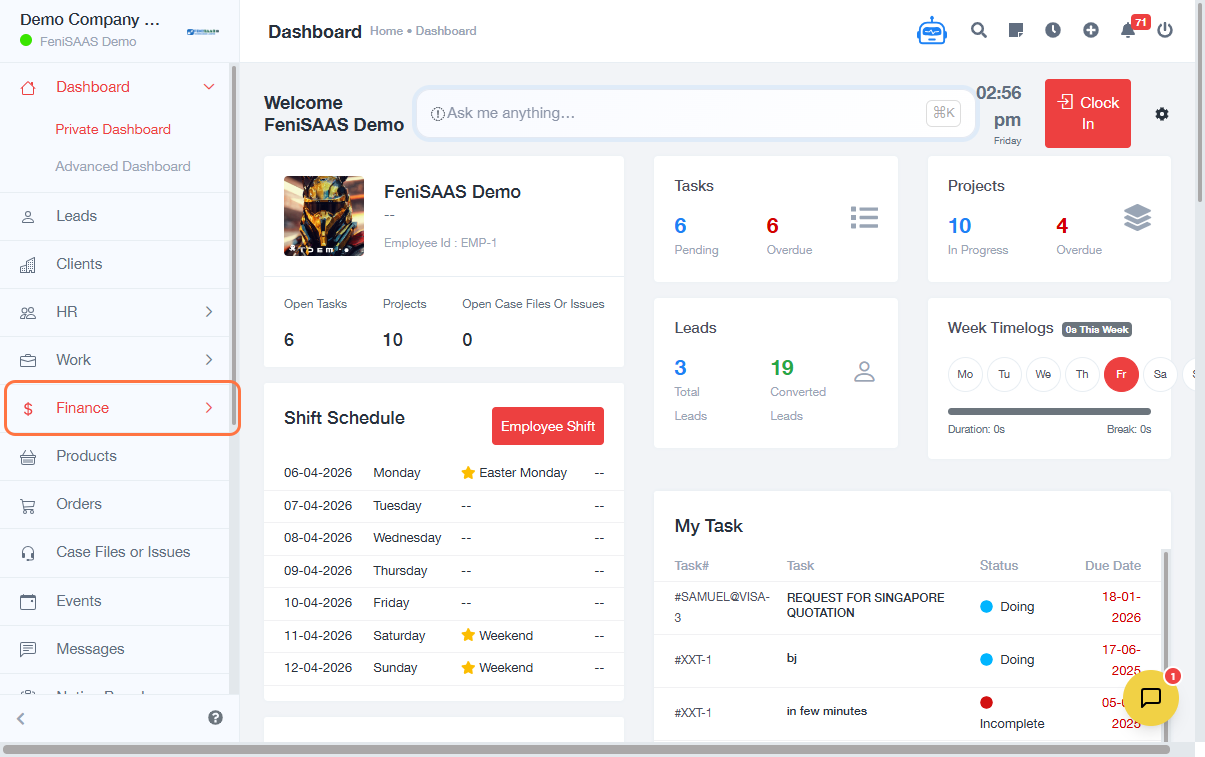
- Go to Dashboard
- Click on Finance
- Click on Proposal
-
Create proposal:
- Click on Create Proposal
-
Enter proposal details:
- Select required fields (e.g., client or title)
- Set Valid Till (expiry date)
-
Add description:
- Enter proposal Description
-
Add items:
- Click Select Product
- Enter Description
- Input Quantity
- Enter Unit Price
-
Finalize proposal:
- Add Note for Recipient (optional)
- Click Save
Expected Result
The proposal will be successfully created and saved, ready to be reviewed, edited, or shared with the client.
Common Errors
- Missing required fields (e.g., client or validity date)
- No product or service added
- Incorrect pricing or quantity values
- Proposal not saved before exiting
- Invalid or past expiry date
FAQs
1. Can I edit a proposal after saving?
Yes, proposals can be edited before being finalized or sent.
2. Is adding a product mandatory?
Yes, at least one product or service is required.
3. What does “Valid Till” mean?
It defines the expiration date of the proposal.
4. Can I convert a proposal to an invoice?
Depending on system configuration, proposals may be converted into invoices.
5. Where can I find saved proposals?
All proposals are available under the Proposal section in Finance.