How to Use Self Onboarding in 925Worksuite ERP
Overview
This guide explains how to set your Human Resources ERP experience level during onboarding. This helps the system personalize your setup and recommend the most relevant HR tools and workflows based on your experience.
Steps
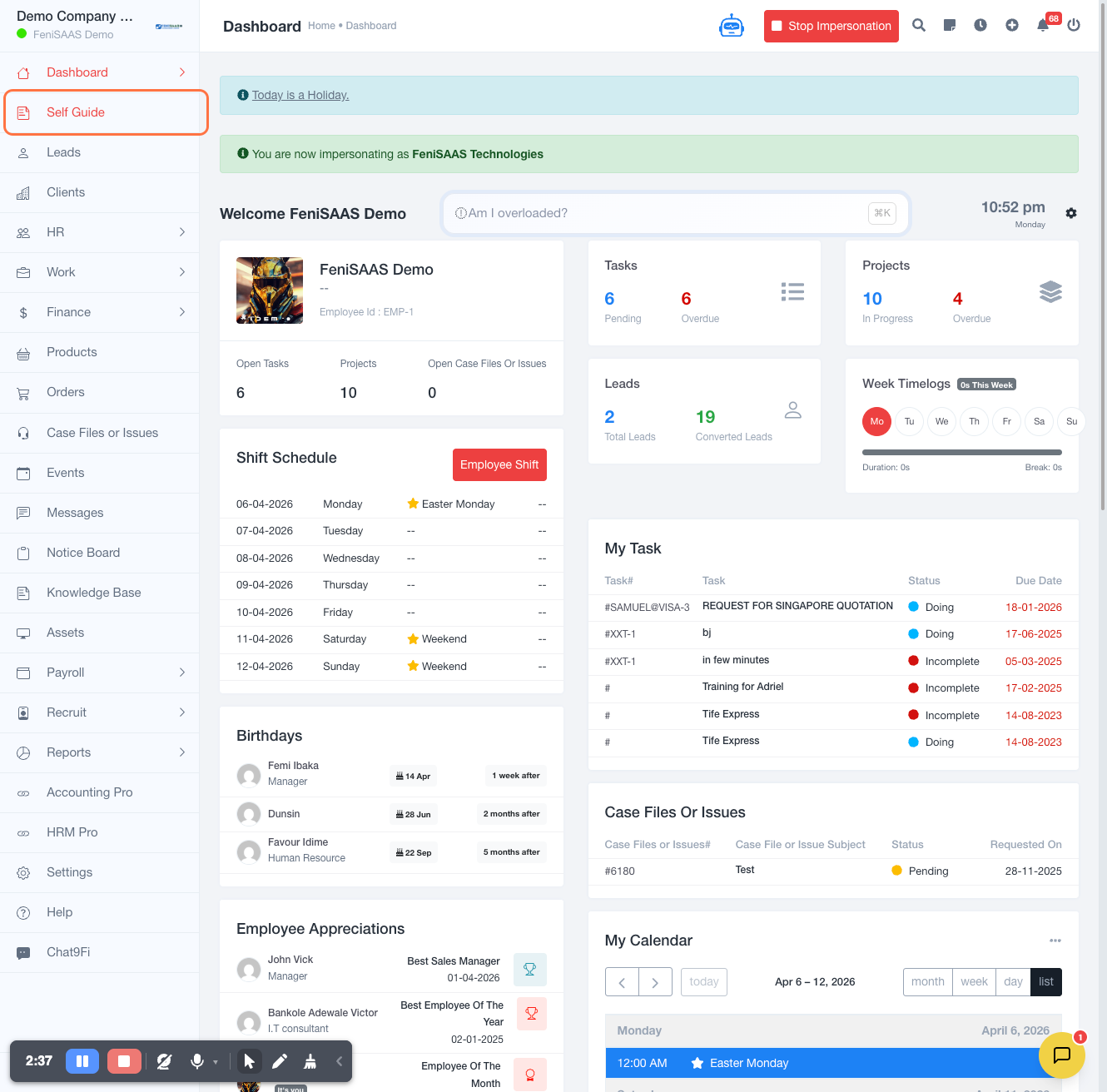
- Go to the Dashboard
- Click on Self Guide
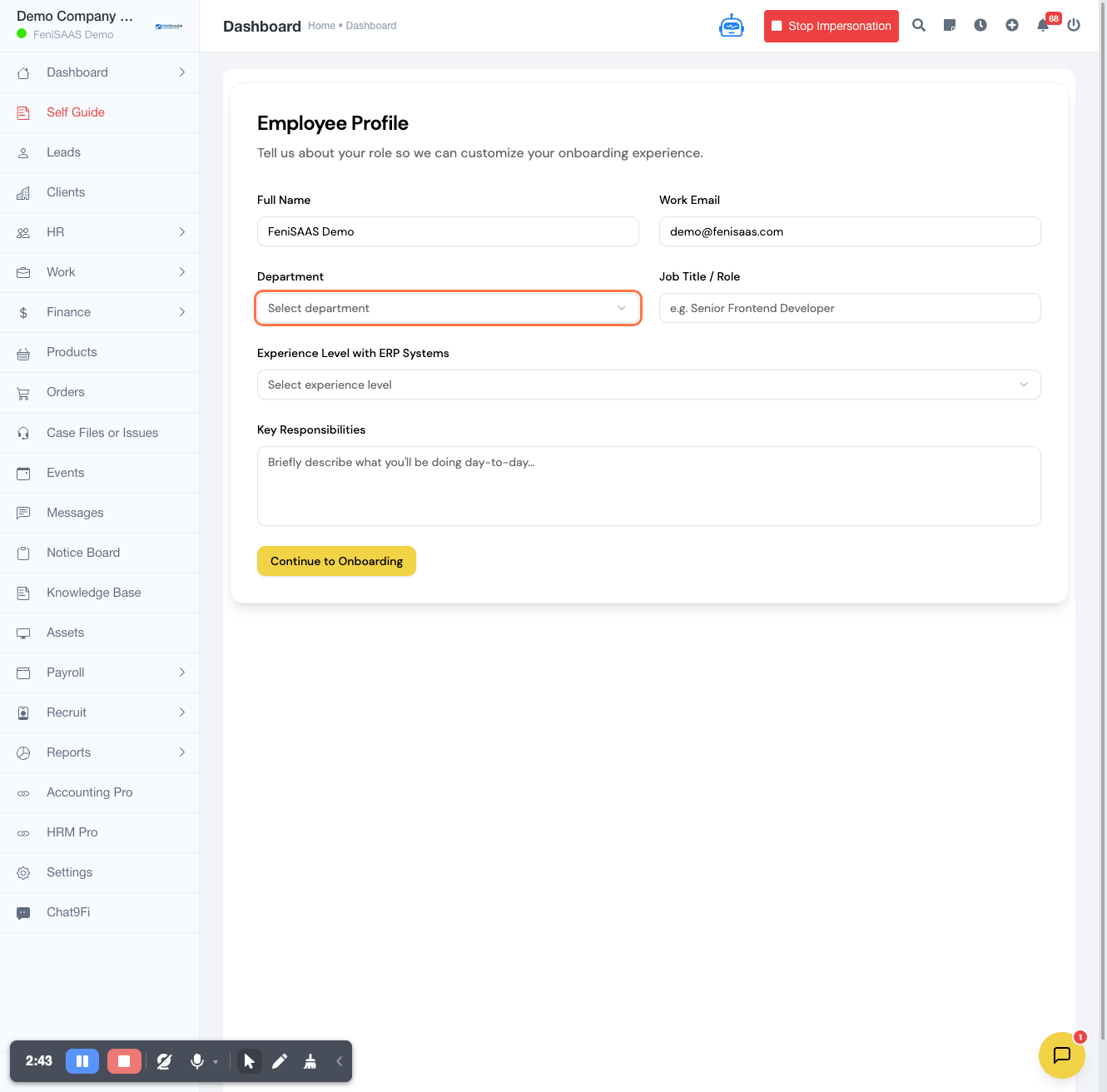
- Click on Department
- Select Human Resources
- In the search/input field, type “Human Resources”
- Click on Experience Level with ERP Systems
- Select your experience level (e.g., Intermediate – Used some systems before)
- In the input field, type your role (e.g., “I manage employees”)
- Click Continue to Onboarding
Expected Result
Your HR experience level and role will be successfully captured, and the onboarding process will continue with a personalized setup tailored to your HR responsibilities.
Common Errors
-
Option not selectable
→ Ensure you have selected the correct department (Human Resources) -
Input field not accepting text
→ Refresh the page and try again -
Wrong experience level selected
→ Go back and reselect before proceeding -
Onboarding not progressing
→ Ensure all required fields are completed before clicking Continue
FAQs (Search Boost Section)
Q: Can I change my ERP experience level later?
Yes, this can typically be updated in your profile or onboarding settings.
Q: What does ERP experience level affect?
It helps customize your dashboard, recommendations, and onboarding flow.
Q: What should I enter in the role field?
Describe your responsibility, e.g., “I manage employees” or “I handle payroll.”
Q: Is this step mandatory?
Yes, it is required to personalize your onboarding experience.