How to Set Up Your Company Profile 925worksuite ERP
This guide explains how to update company settings in 925Worksuite ERP. It covers editing company details, adding business addresses, updating profile information, managing currency settings, and configuring finance settings.
Steps
- Go to the Dashboard
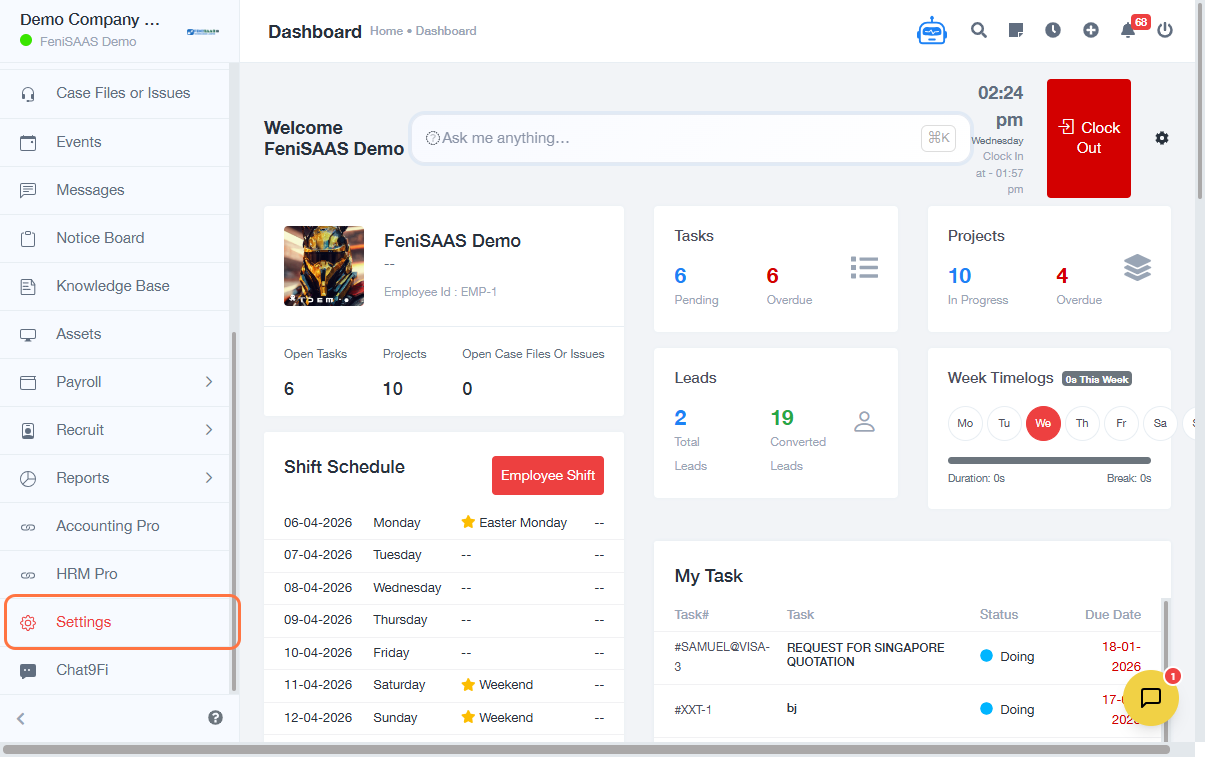
- Click on Settings Module
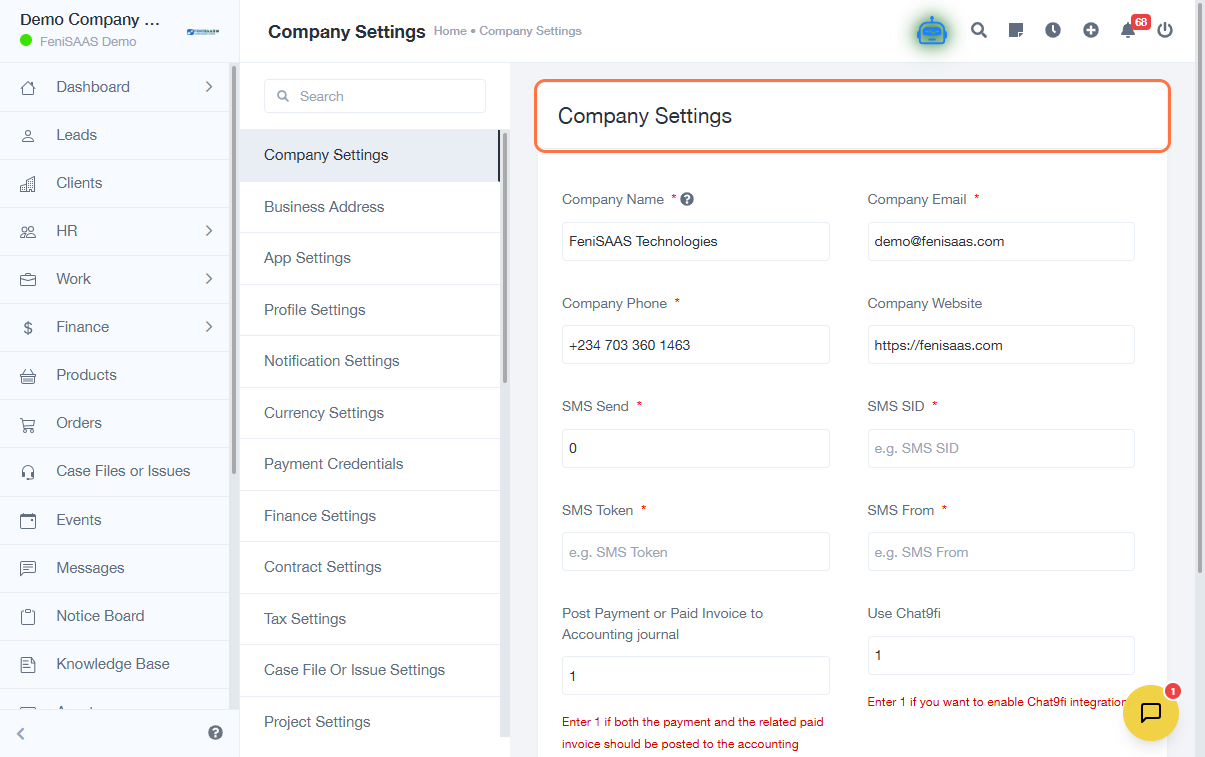
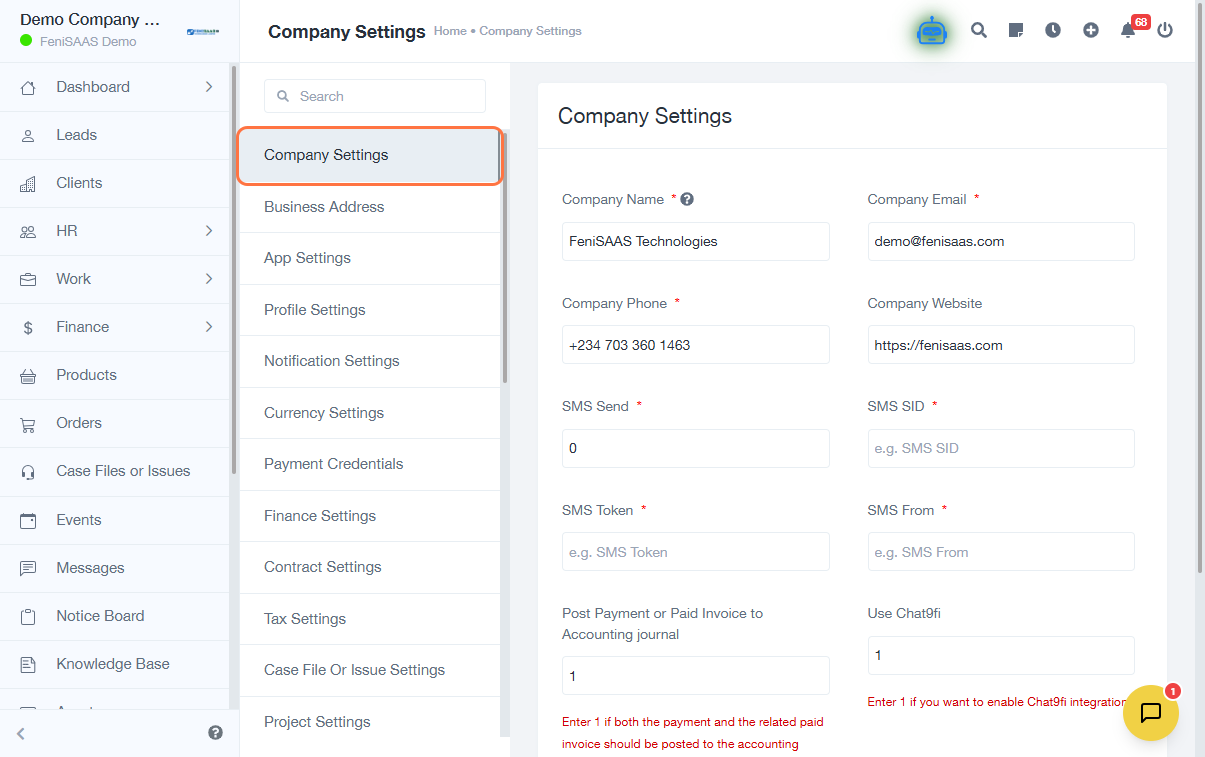
- Select Company Settings
- Update company details as needed and click Save
- To add a business address:
- Click on Business Address
- Click Add New Address
- Enter address details
- Click Save
- To update profile settings:
- Click on Profile Settings
- Update email or password if required
- Click Save
- To manage currency:
- Click on Currency Settings
- Click Add New Currency
- Enter currency details
- Save changes
- To update finance settings:
- Click on Finance Settings
- Select Invoice Settings or Contract Settings
- Update fields such as Contract Prefix
- Save changes
Expected Result
Your company settings, including profile, address, currency, and finance configurations, will be successfully updated.
Common Errors
• Changes not saved due to missing required fields
• Incorrect email format in profile settings
• Duplicate currency entries
• Insufficient permissions to access settings
• Forgetting to click “Save” after changes
FAQs
• How do I update company details in 925Worksuite?
Go to Settings → Company Settings, edit the details, and click Save.
• Can I add multiple business addresses?
Yes, use the “Add New Address” option under Business Address.
• How do I change my account email or password?
Go to Profile Settings and update your details.
• How do I add a new currency?
Go to Currency Settings and click “Add New Currency.”
• Where can I edit invoice or contract settings?
Go to Finance Settings and select the relevant option.