How to Edit Employee Details in Employee Management 925worksuite ERP
Overview
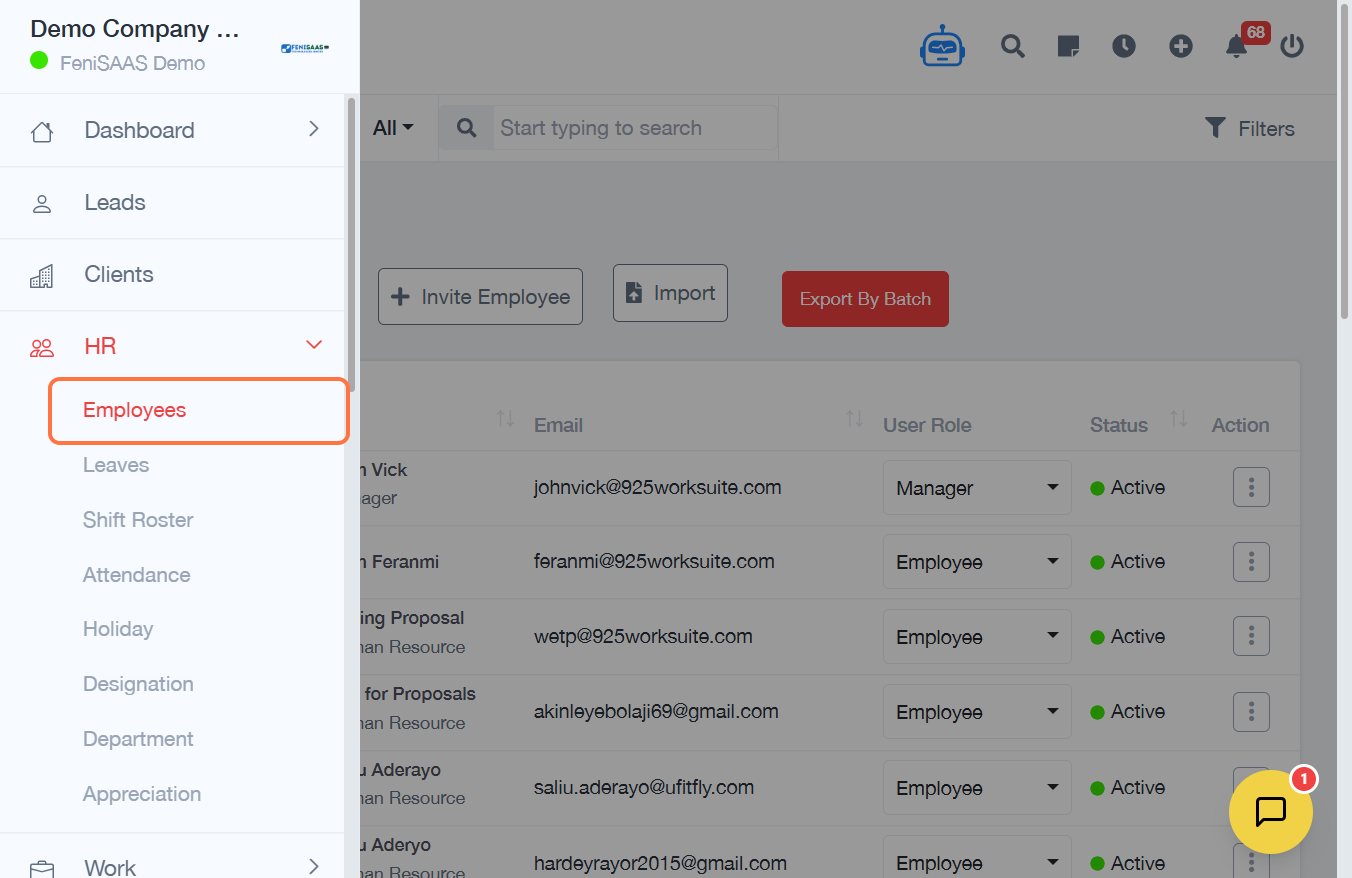
This guide explains how to edit employee details in the Employee Management section of the system. It allows administrators to update employee information such as name and other profile details.
Steps
- Go to the Employees section from the dashboard
- Locate the employee you want to edit
- Click on the three-dot menu (⋮) on the right side of the employee record
- Click on Edit
- Update the required fields (e.g., Employee Name or other details)
- Scroll down to the bottom of the page
- Click Save
Expected Result
The employee details will be successfully updated and reflected in the employee list.
Common Errors
- Changes not saved because the Save button was not clicked
- Required fields left empty during editing
- Editing the wrong employee due to incorrect selection
- Page not scrolled down to access the Save button
FAQs (Search Boost Section)
1. How do I edit employee information?
Go to Employees, click the three-dot menu next to the employee, and select Edit.
2. Can I update multiple employee details at once?
No, employee details must be edited individually.
3. Why are my changes not reflecting?
Ensure you clicked the Save button after making changes.
4. Can I edit all employee fields?
Yes, you can edit available fields depending on system permissions.
5. Where is the edit option located?
It is inside the three-dot menu next to each employee record.