How to Create Case File on 925Worksuite ERP
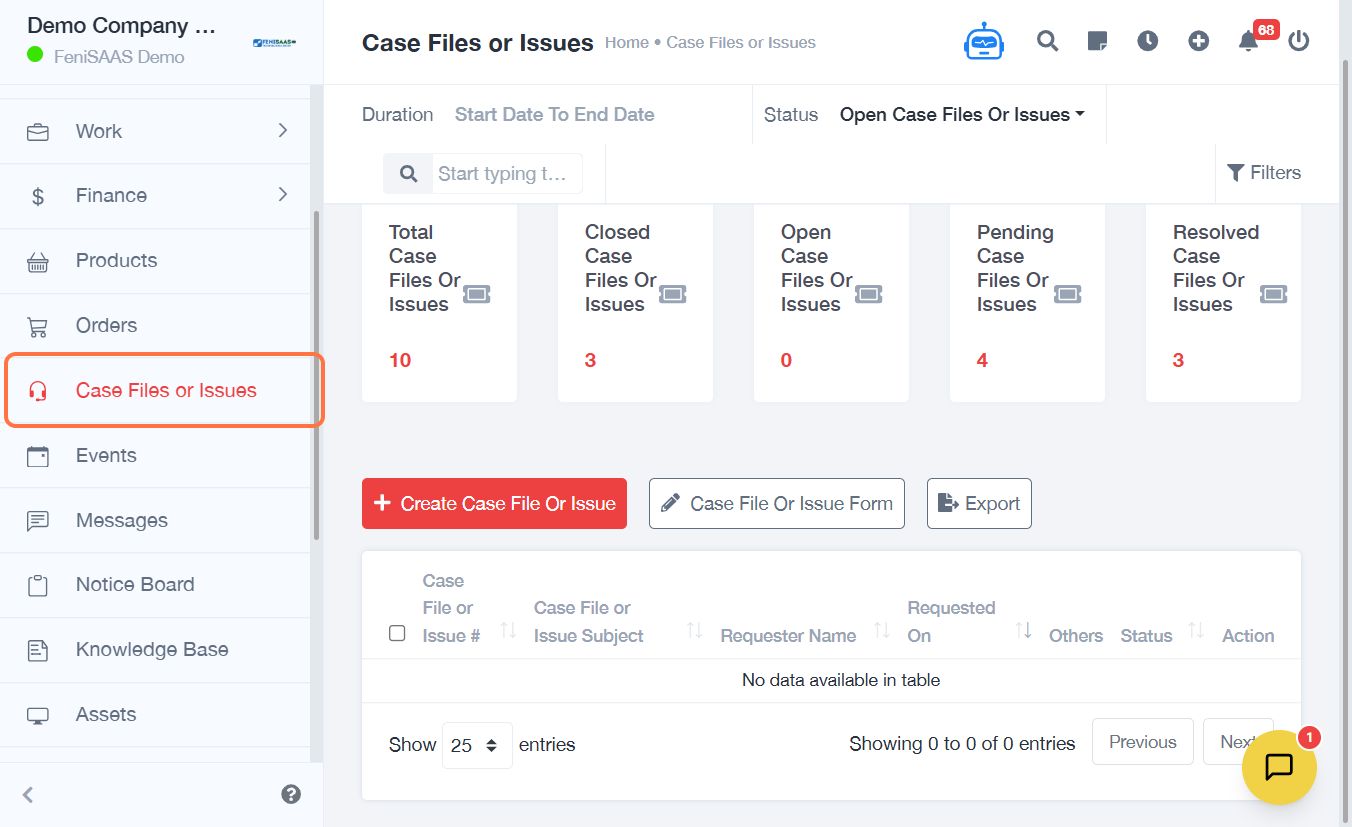
1. Overview
This guide explains how to create a case file or issue in the Case Management module. It helps you log, assign, and track client or internal issues efficiently.
2. Steps
- Go to Case Files or Issues
- Click on Create Case File or Issue
- Click on Requester and select a client or employee
- Select the requester name and assign group from the dropdown
- Select the agent handling the case
- Enter the subject of the case or issue
- Add a detailed description explaining the issue
- Upload supporting documents if required
- Click on Other Details
- Select the priority of the issue
- Select the type of issue
- Choose a channel name if applicable
- Click Save
3. Expected Result
The case file will be successfully created and assigned to the selected agent or group for follow up and resolution.
4. Common Errors
- Requester not selected
- Missing subject or description
- Incorrect assignment group
- Required fields left empty
- File upload fails due to unsupported format
5. FAQs
How do I create a case file
Follow the steps above and ensure all required fields are completed before saving.
Can I assign a case to a specific agent
Yes, you can select an agent during case creation.
Can I upload documents to a case file
Yes, use the upload file option to attach supporting documents.
What happens after I save the case
The case is logged and assigned for action based on the selected group or agent.
Can I set priority for a case
Yes, you can choose the priority level before saving.