How to Respond to Customer Tickets/Case file on 925Worksuite ERP
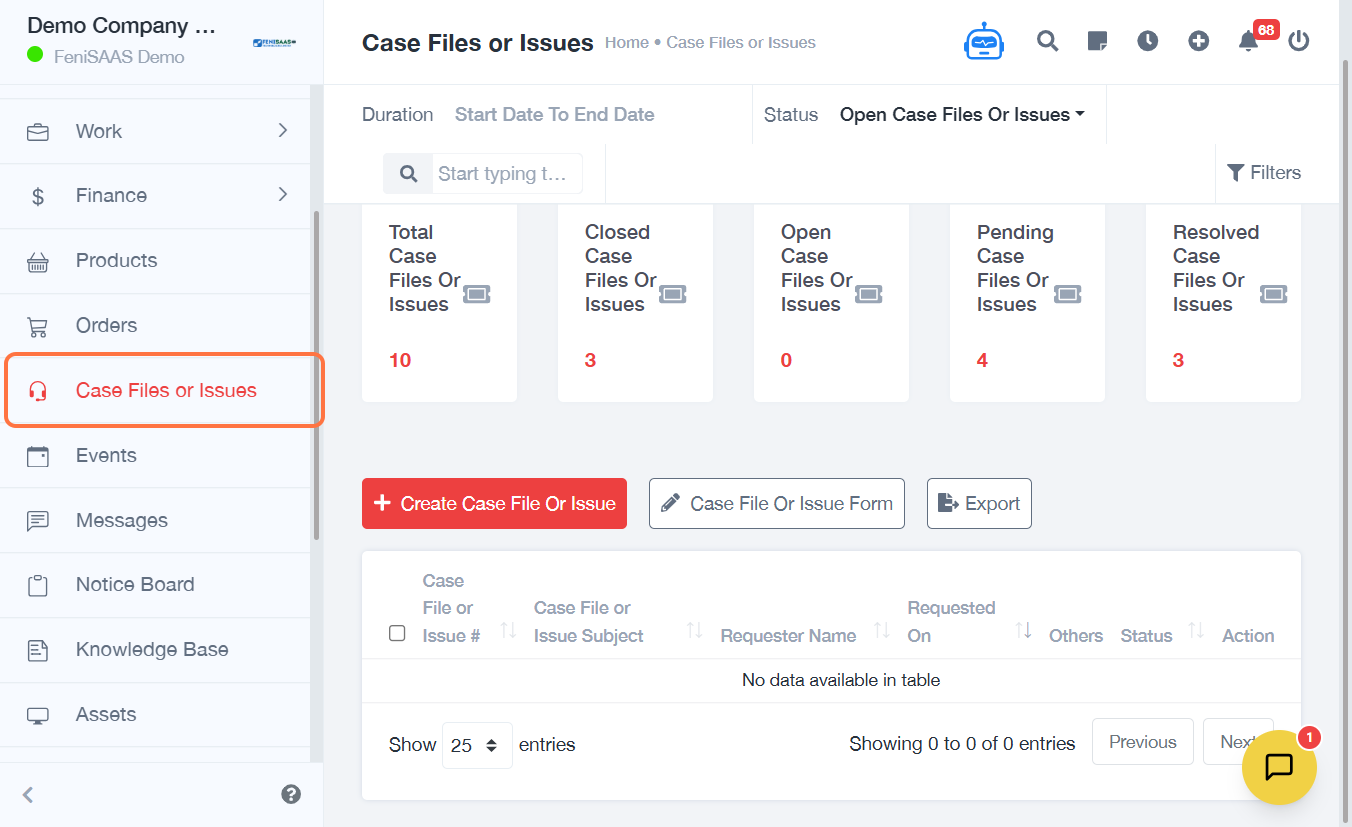
1. Overview
This guide explains how to respond to customer tickets or case files in the Case Management module. It allows agents to view issues, communicate with customers, and provide timely resolutions.
2. Steps
- Go to Case Files or Issues
- Click on the three dots next to the case
- Click on View
- Click on Reply
- Type your response in the message field
- Upload supporting documents if required
- Click Submit and select the appropriate option
3. Expected Result
Your response will be successfully sent and recorded in the case file, allowing the customer and team to view the update.
4. Common Errors
- Case not opened before replying
- Response field left empty
- File upload fails due to unsupported format
- Incorrect submit option selected
- Network interruption during submission
5. FAQs
How do I reply to a customer ticket
Open the case, click reply, type your message, and submit.
Can I attach files when responding
to a case
Yes, you can upload documents before submitting your response.
Can I edit my response after
submitting
This depends on system permissions. Typically, you may need to send a new
reply.
What happens after I submit a
response
The response is logged in the case and visible to relevant users.
Do I need to select a submit option
Yes, select the appropriate option based on the action you want to take.