Knowledge Article
How to Assign Lead to Sales Agent (925 worksuite)
0
0
Overview
This guide explains how to assign a lead to an agent in the CRM module. Assigning leads ensures that each sales representative is responsible for following up with specific prospects.
Steps
- Navigate to CRM → Leads.
- Click Add Lead.
-
Enter the lead’s basic information:
- Lead Name
- Lead Email
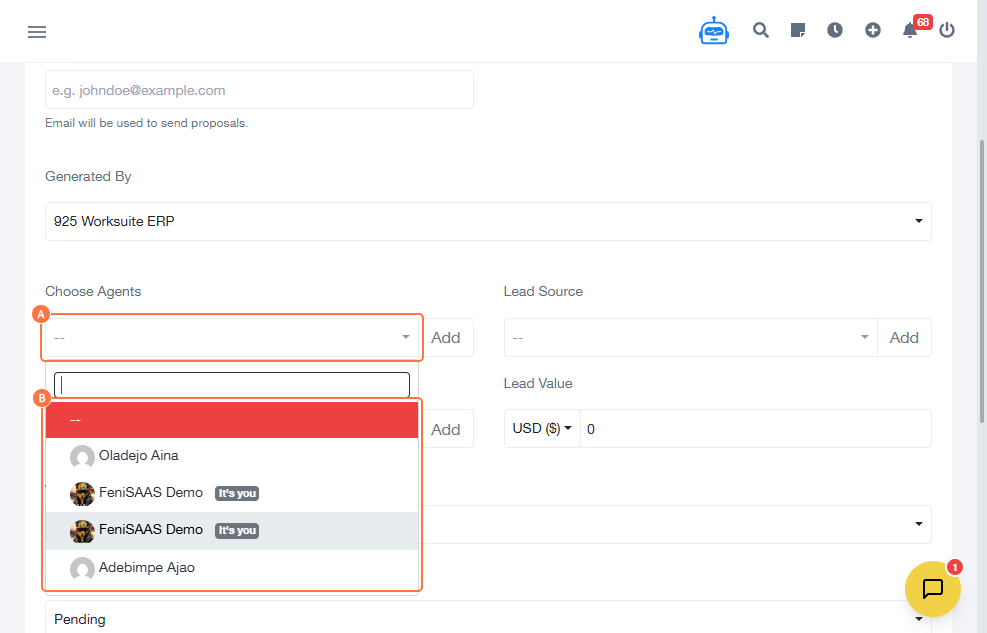
- Locate the Agent / Assigned To field.
- Click the dropdown and select the agent.
- Fill in any additional required fields.
- Click Add.
- Click Save.
- Close the form window.
Expected Result
The lead will be successfully created and assigned to the selected agent, making them responsible for follow-up and management.
Common Errors
- Agent not selected before saving
- Required fields missing
- Selecting the wrong agent
- Closing the form before saving
FAQs
Can I change the assigned agent later?
Yes, you can edit the lead and reassign it.
Is assigning an agent mandatory?
It is recommended to ensure proper follow-up and accountability.
Why is the agent dropdown empty?
Agents must be created in the system before assignment.
Can one lead be assigned to multiple agents?
This depends on system configuration; typically, one primary agent is assigned.