How to Assign Employee Shifts in 925worksuite ERP
Overview
This guide explains how to create and assign work shifts to employees in the system. It includes setting up shift schedules and assigning them individually or in bulk to ensure proper attendance tracking.
Steps
A. Create a Shift
- Go to the Dashboard
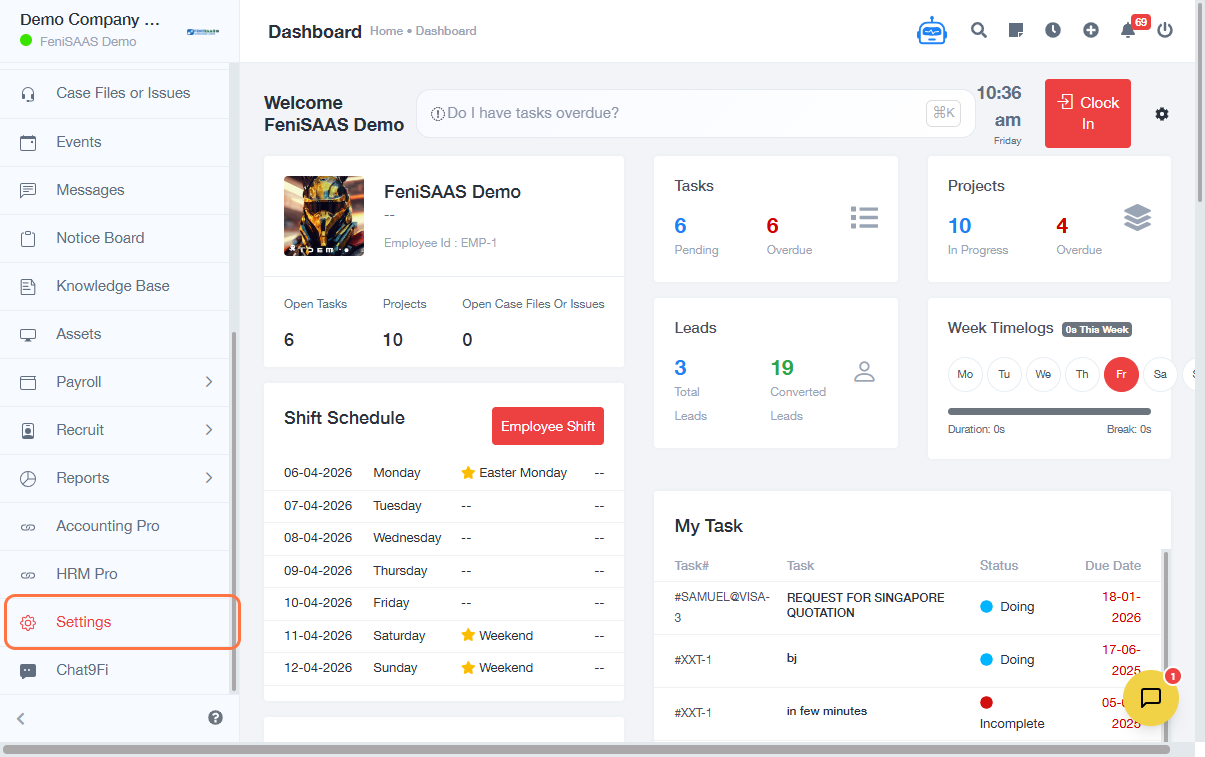
- Click on Settings
- Select Attendance Settings
- Click on Employee Shifts
- Enter the Shift Name and configure shift details (e.g., time)
- Click Save
B. Assign Shift to Employees
- Go to HR
- Click on Shift Roster
- Select Assign Bulk Shifts
- Click on Add Shift Roster
- Select the Employees you want to assign shifts to
- Choose the Shift (e.g., General Shift [09:00 – 18:00])
- Select how to assign the shift (e.g., Send Email Notification)
- Add a Remark (optional)
- Click Save
Expected Result
The selected employees will be assigned to the specified shift, and their schedules will be updated in the system.
Common Errors
- Not creating a shift before attempting to assign one
- Not selecting employees before saving
- Choosing the wrong shift schedule
- Forgetting to click Save
- Missing required fields during shift setup
- Insufficient permissions to assign shifts
FAQs
1. How do I assign shifts to employees?
Go to HR → Shift Roster → Assign Bulk Shifts → Add Shift Roster → Select employees and shift → Save.
2. Can I assign shifts to multiple employees at once?
Yes, use the Assign Bulk Shifts option.
3. What happens after assigning a shift?
The employee’s work schedule is updated and reflected in attendance tracking.
4. Do employees get notified?
Yes, if you select the Send Email option during the assignment.
5. Can I edit or change a shift later?
Yes, you can update the shift roster depending on your permissions.