How to Mark Holidays in 925worksuite ERP
Overview
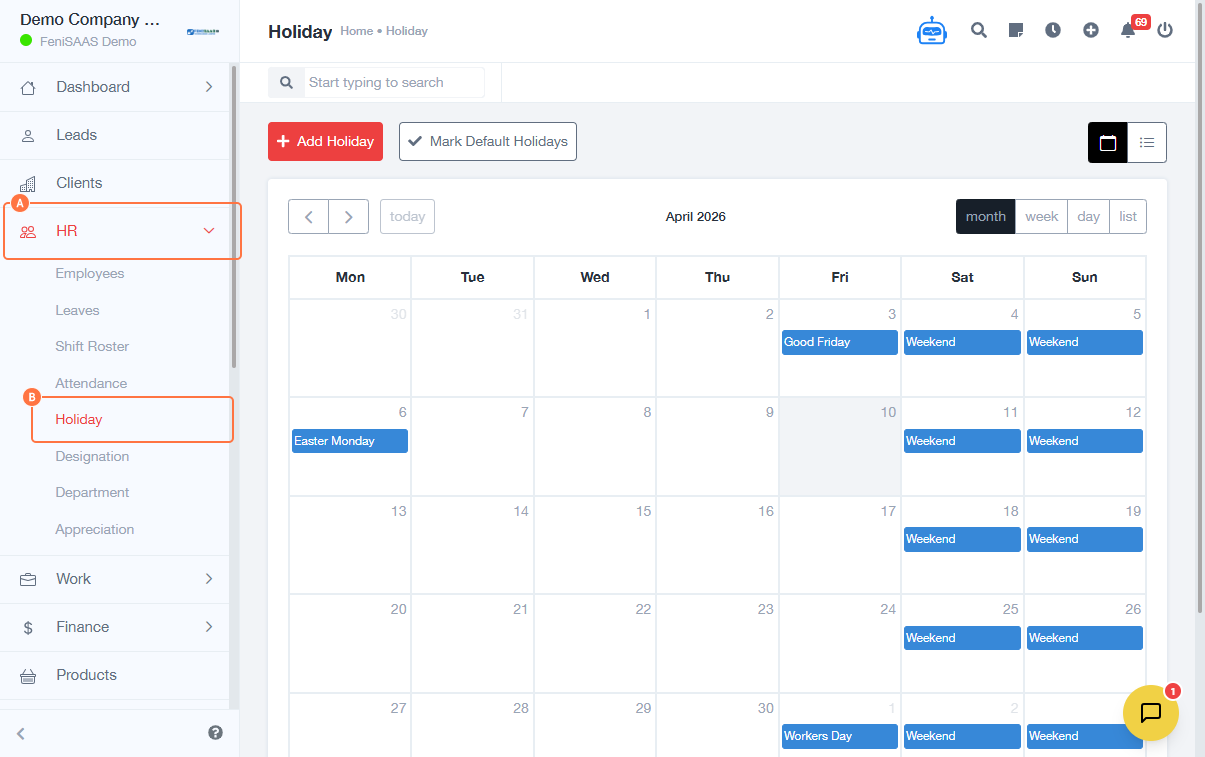
This guide explains how to create holidays and mark default holidays for the current year in the system. Default holidays ensure that non-working days are automatically applied across the organization.
Steps
A. Create a Holiday
- Go to the Dashboard
- Click on HR
- Select Holiday
- Enter the Date of the holiday
- Enter the Occasion (e.g., Public Holiday, Company Holiday)
- Click Save
B. Mark Default Holidays
- Click on Mark Default Holidays
- Select Mark Days for Default Holidays for the Current Year
- Review or select applicable holiday dates
- Click Save
Expected Result
The selected holidays will be marked as default holidays and automatically recognized as non-working days across the system.
Common Errors
- Not saving after creating a holiday
- Skipping the Mark Default Holidays step
- Selecting incorrect dates for holidays
- Not applying holidays to the current year
- Insufficient permissions to manage holidays
FAQs
1. How do I add a holiday in the system?
Go to HR → Holiday → Enter date and occasion → Save.
2. What are the default holidays?
Default holidays are pre-set non-working days applied across the organization.
3. Do I need to mark holidays after creating them?
Yes, you must mark them as default for them to apply system-wide.
4. Can I edit or remove a holiday?
Yes, depending on your permissions, you can update or delete holidays.
5. Will holidays affect attendance automatically?
Yes, default holidays are treated as non-working days in attendance tracking.