How to assign Task to team members( 925 worksuite ERP)
Overview
This guide explains how to create and assign a task to a team member in the Work module. Assigning tasks ensures accountability, clear ownership, and proper execution of project activities.
Steps
-
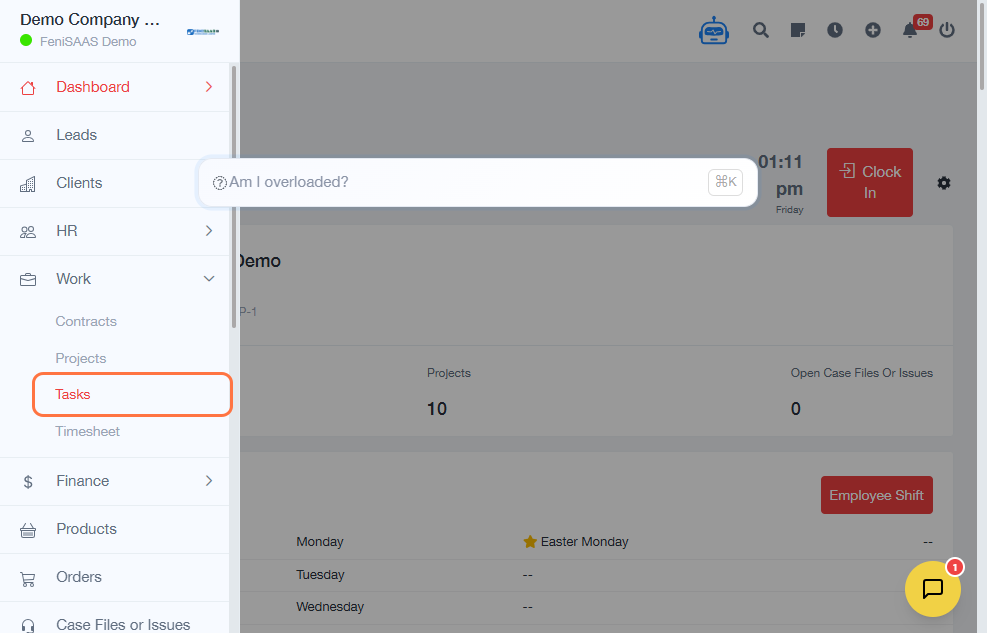
Navigate to the Dashboard.
-
Click on Work.
-
Select Tasks.
-
Click Add Task.
-
Enter the required task details:
-
Title – Name of the task
-
Due Date – Set the deadline for completion
-
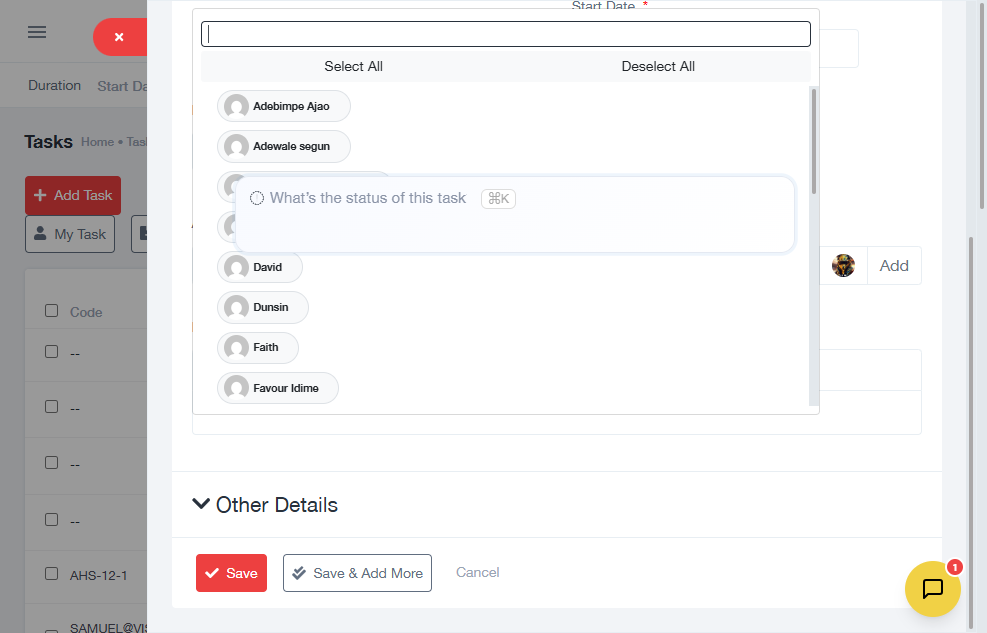
Click on the assignment dropdown field.
-
Select the team member (agent) responsible for the task.
-
Select additional required options (such as project or priority).
-
Click Save.
- Title – Name of the task
- Due Date – Set the deadline for completion
Expected Result
A new task is created and assigned to a specific team member, ensuring clear responsibility and execution tracking.
Common Errors
-
Not assigning the task to a team member
-
Selecting the wrong team member
-
Missing required fields (Title or Due Date)
-
Forgetting to click Save
-
Not linking the task to a project when required
FAQs
Is assigning a task mandatory?
Yes, every task should have a responsible owner to ensure accountability.
Can I reassign a task later?
Yes, tasks can be reassigned at any time.
Can multiple people be assigned to one task?
This depends on system configuration, but typically one primary owner is recommended.
What happens if no one is assigned?
The task may be overlooked or delayed.
Can tasks be linked to projects?
Yes, tasks should be linked to projects for better organization and tracking.