How to Track Task Progress in Tasks (925Worksuite ERP)
Overview
This guide explains how to track task progress in the Tasks module within the Work section of 925Worksuite.
Tracking task progress ensures:
- Clear visibility of work status
- Proper follow-up on activities
- Alignment with the overall sales and operations pipeline
🔄 Steps
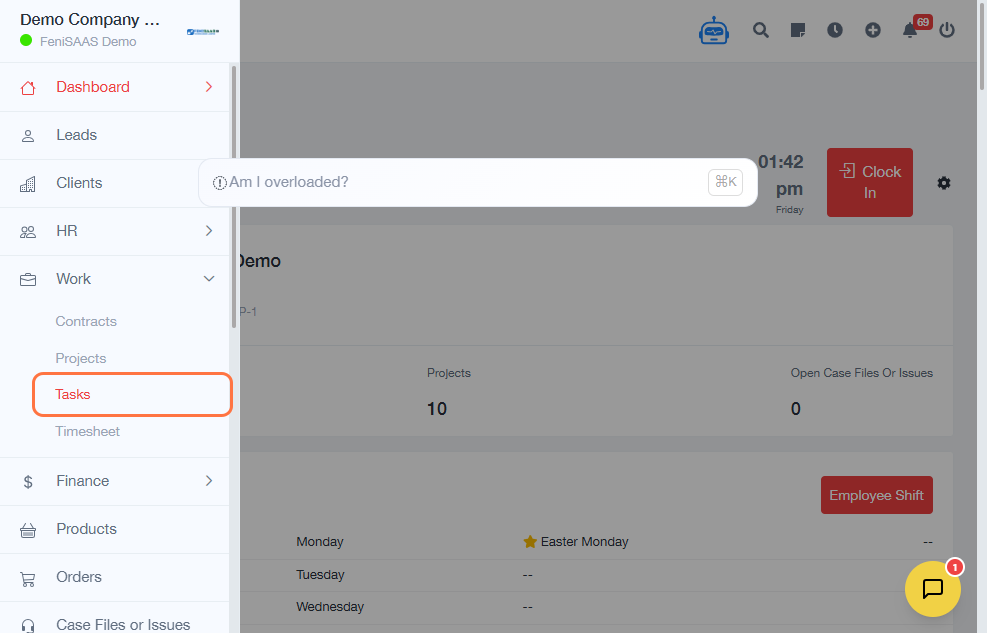
1. Go to Work Module
- From the Dashboard
- Click on Work
2. Open Tasks
- Click on Tasks
3. Select the Task
- Click on My Task
- Select the task you want to track
4. Access Task Details
- If required, log in with your credentials
- This opens the full task interface
5. Review Task Execution Tabs
Use the tabs to monitor progress:
- Files → Check uploaded documents
- Sub Task → View breakdown of task progress
- Comment → Review communication updates
- Timesheet → Track time spent
- Notes → View important updates or blockers
6. Check Task History
- Click on History
- Select the latest activity
👉 This shows:
- Previous updates
- Actions taken
- Timeline of progress
7. Update Task Status
- Click on Status
Select the appropriate stage:
- PENDING → Not started
- INTRODUCTION → Initial stage
- MEETING → Discussion ongoing
- IN PROCESS → Work in progress
- HALF COMPLETED → Partially done
- RE-EVALUATE → Needs review
- DONE → Completed
8. Use Action for Progress Control
- Click on Action → View
Track execution using:
- FOLLOW UP → Next steps or pending actions
- PROPOSAL → Deliverables or outputs
- NOTES → Key updates and decisions
9. Open Linked Records
- Click on the link icon
👉 View related:
- Lead
- Client
- Previous activities
✅ Expected Result
The task will be:
- Properly monitored
- Updated with accurate status
- Aligned with next actions
- Fully visible within the workflow pipeline
⚠️ Common Errors
- Task status not updated after progress
- No follow-up action recorded
- Missing notes explaining changes
- Ignoring task history before updates
- Incomplete use of task tabs (files, comments, etc.)
❓ FAQs
1. How do I know if a task is progressing correctly?
Check Status, History, and Notes for consistent updates.
2. What status should I use if work is ongoing?
Use IN PROCESS.
3. When should I use RE-EVALUATE?
When the task requires correction or reassessment.
4. Why is task tracking important?
It ensures accountability, visibility, and smooth workflow execution.
5. What should I do after updating status?
Always log a Follow Up or Notes to define the next step.