Knowledge Article
How to Log Time on Tasks(925 worksuite ERP)
0
0
Overview
This guide explains how to log work hours in the Timesheet module. Logging time helps track productivity, monitor task duration, and maintain accurate records for reporting and billing.
Steps
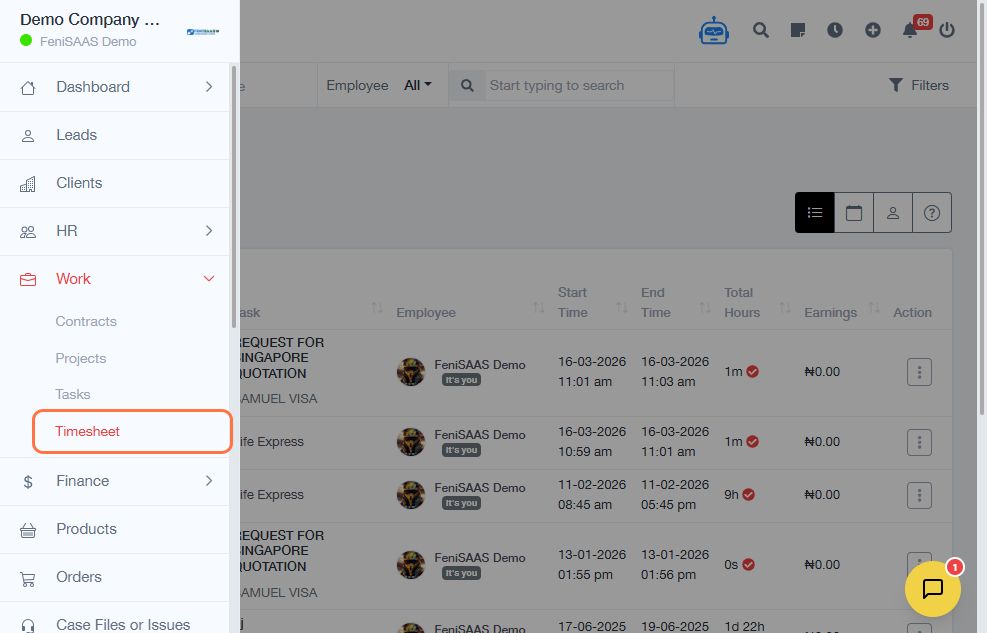
- Go to Timesheet (under the Work Module)
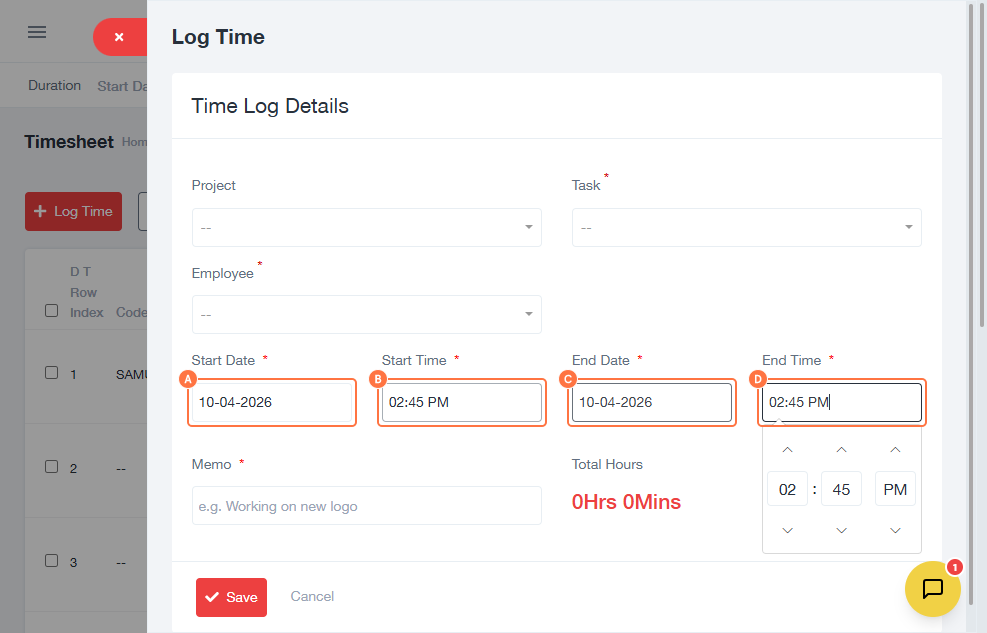
- Click on Log Time
- Enter Start Date
- Select Start Time
- Enter End Date
- Select End Time
- Click on Memo and add a description of the work done
- Click on Save
Expected Result
The time entry will be successfully saved and displayed in the Timesheet module for tracking and reporting.
Common Errors
- Start time is later than end time
- Missing required fields (date or time)
- Incorrect time format
- Forgetting to save the entry
FAQs
Can I edit a logged time entry?
Yes, you can update your timesheet entry if editing is enabled.
Why is my time entry not saving?
Ensure all required fields are completed correctly.
Can I log time for past dates?
Yes, depending on system permissions.
What should I write in the memo field?
Include a short description of the work performed.
Tags:
Attached files