How to manage project deadline (925Worksuite ERP)
Overview
This guide explains how to manage and monitor project deadlines by logging and reviewing time entries within a project. By tracking actual work time against planned timelines, you can ensure tasks stay on schedule and identify delays early.
Steps
- Go to the Dashboard
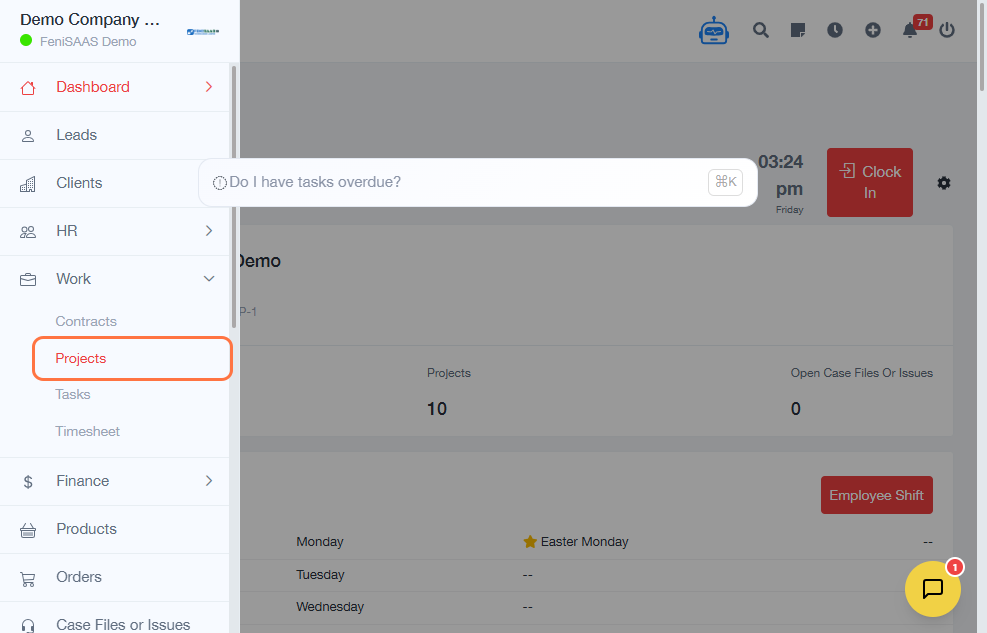
- Click on Projects
- Select the relevant project (e.g., Mobile App Upgrade for Q3)
- Click on Overview
- Navigate to the Timesheet tab
- Click on Log Time
- Enter the Start Date (when work began)
- Select the Start Time
- Enter the End Date (expected or actual completion time)
- Select the End Time
- Click on Memo and describe the task progress or milestone
- Click on Save
Expected Result
👉 Time entries will be recorded against the project, allowing you to track progress against deadlines and identify whether tasks are on schedule or delayed.
Common Errors
• Incorrect time entries leading to inaccurate deadline tracking
• Not updating timesheets regularly
• Overlapping or duplicate entries
• Missing memo details, making progress unclear
• Logging time under the wrong project
FAQs
• How does timesheet help with deadline management?
It shows actual time spent versus planned time, helping you identify delays.
• Can I adjust time entries if deadlines change?
Yes, you can edit entries to reflect updated timelines.
• What if a task exceeds the planned deadline?
You can log additional time and use the data to analyze delays.
• Can managers monitor team deadlines using timesheets?
Yes, managers can review all entries to track overall project progress.
• Is timesheet tracking mandatory for deadline management?
It is highly recommended for accurate monitoring and reporting.