Knowledge Article
How to Add Expense in 925worksuite ERP
1
0
Overview
This guide explains how to record and save an expense in the Finance module. Expenses help track company spending, manage cash flow, and maintain accurate financial records.
Steps
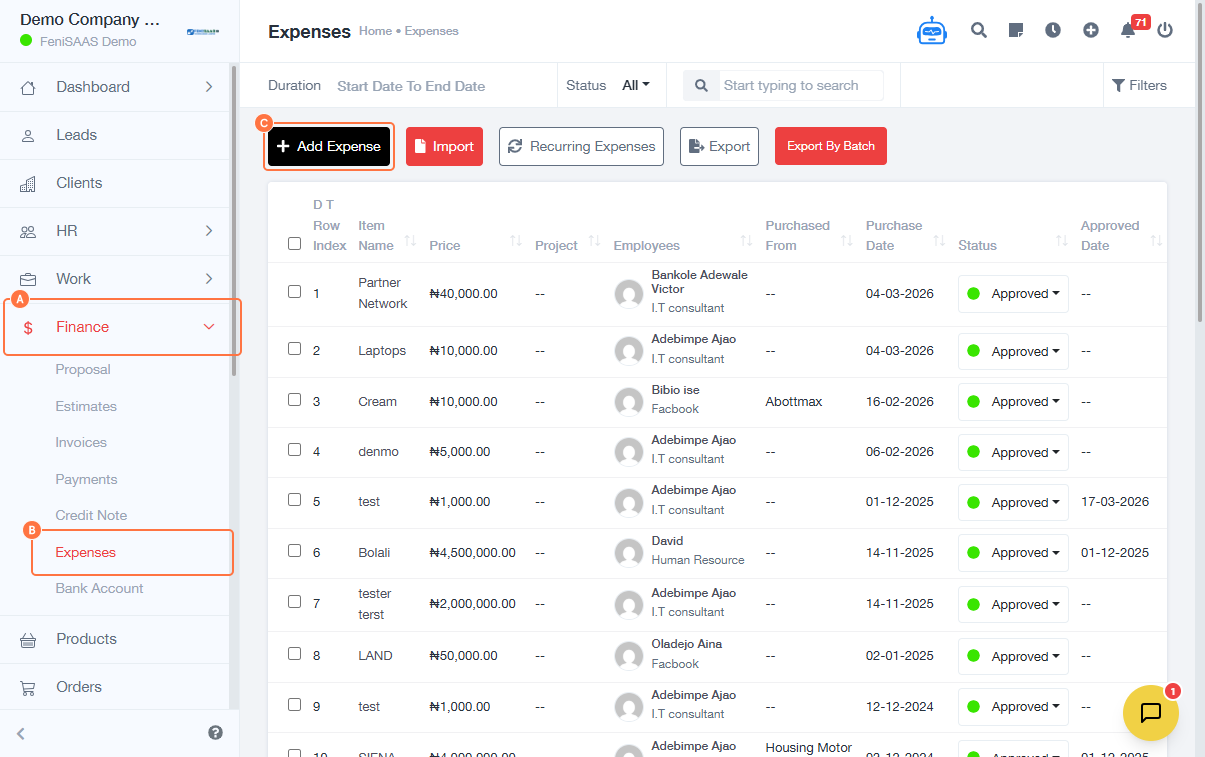
- Go to Finance
- Click on Expenses
- Click on Add Expense
-
Enter expense details:
- Select Expense Details
- Input Item Name
- Choose Currency (₦ - Naira)
- Enter Price
- Enter Purchase Date
- Select additional options if required (e.g., category or account)
-
Click on Purchased From
- Enter vendor or supplier name
-
Add more details:
- Enter Description
- Upload Bill/Receipt (optional)
- Click Save
Expected Result
The expense will be successfully recorded and reflected in the Finance module for reporting and tracking.
Common Errors
- Missing required fields (e.g., item name or price)
- Incorrect currency selection
- Invalid or missing purchase date
- Forgetting to save the expense
FAQs
1. Can I edit an expense after saving?
Yes, you can update the expense depending on your access permissions.
2. Is attaching a receipt mandatory?
It depends on your organization’s policy, but it is recommended for proper documentation.
3. Can I record expenses in different currencies?
Yes, if multi-currency is enabled in your system.
4. Where can I view saved expenses?
All expenses can be viewed under the Expenses section in Finance.