How to Add Product in Product Management (925Worksuite ERP)
Overview
This guide explains how to add a new product in the Product Management module in 925Worksuite ERP.
Creating products allows you to manage pricing, assign sales targets, and make products available for client purchases.
2. Steps
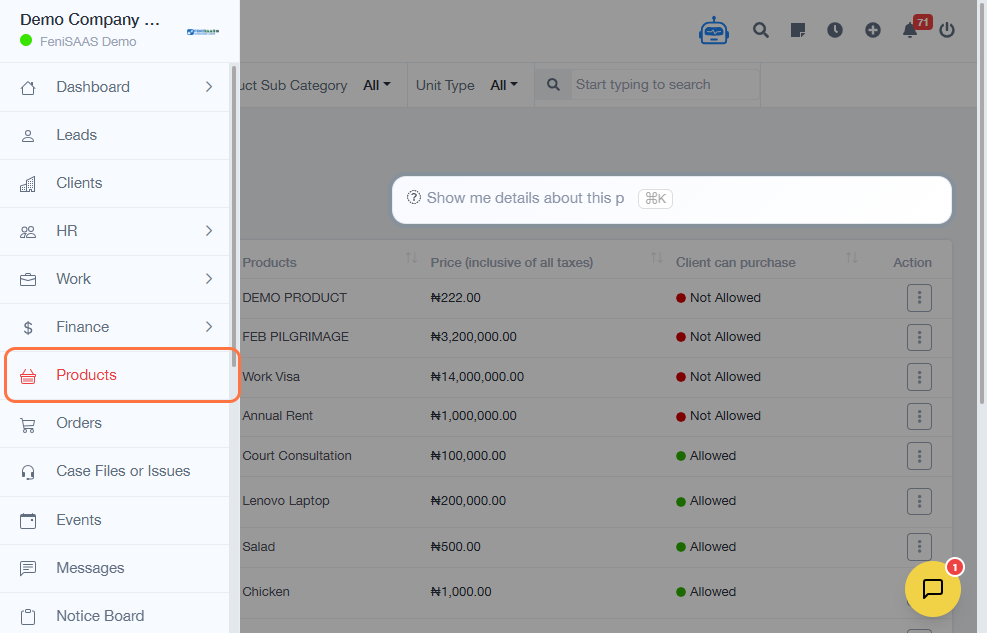
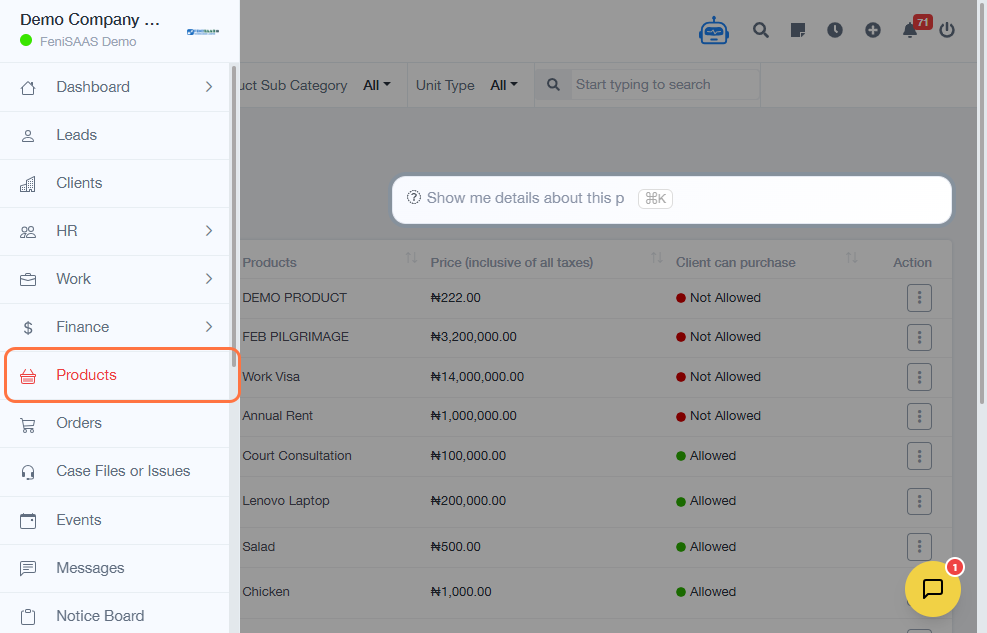
- Go to the Products section
- Click on Add Product
-
Enter product details:
- Product Name
- Price
- Set a Sales Target (if applicable)
- Select Client can purchase option (to allow client access)
- Upload a product file/image by clicking Choose a file (optional)
- Confirm client purchase selection if required
- Click Save
3. Expected Result
👉 The product will be successfully created and added to the product list, making it available for sales, invoicing, and client access.
4. Common Errors
• Missing product name or price
• Invalid price format
• Not enabling “Client can purchase” when required
• Unsupported file format during upload
• Forgetting to save after entering details
5. FAQs
Q: Can I edit a product after creating it?
Yes, you can update product details anytime from the product list.
Q: Is setting a sales target mandatory?
No, it is optional but useful for tracking performance.
Q: Can clients see all products automatically?
Only products with “Client can purchase” enabled will be visible to clients.
Q: Can I upload multiple product images?
This depends on system configuration; typically one file is supported per product.