How to Add and Configure Events in Events Module 925worksuite ERP
Overview
This guide explains how to add and configure events in the system. Users can create events, set schedules, assign details, and enable reminders for better planning and coordination.
Steps
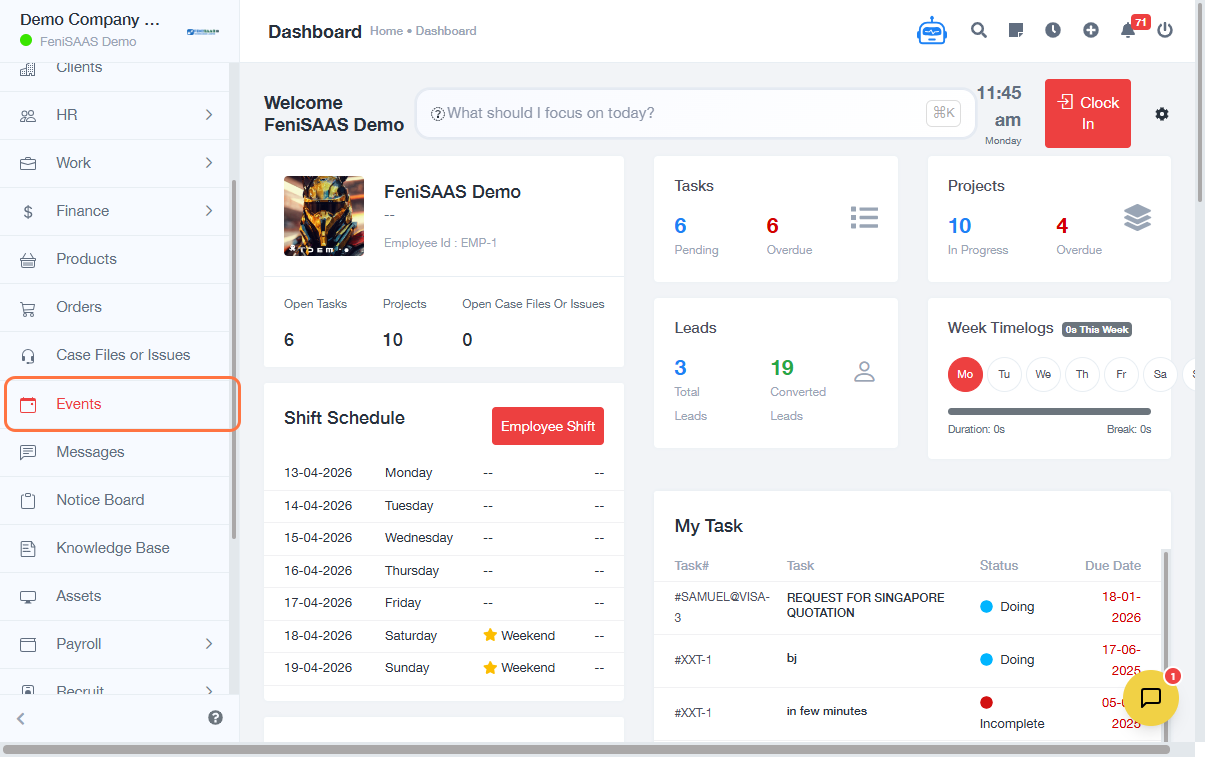
- Go to Events
- Click on Add Event
-
Enter basic event details:
- Input Event Name
- Specify Location (Where)
-
Add event schedule and description:
- Enter Description
- Select Start Date
- Select Start Time
- Select End Date
- Select End Time
-
Configure additional settings:
- Select participants or options (if applicable)
- Add Event Link (if required)
- Enable Send Reminder
- Click Save
Expected Result
The event will be successfully created and scheduled, with all configured details and reminders applied.
Common Errors
- Missing required fields (e.g., Event Name, Date)
- Incorrect date or time selection
- Not selecting participants when required
- Forgetting to enable reminders
- Invalid or broken event link
FAQs
1. How do I create an event in the system?
Go to Events, click Add Event, fill in details, and save.
2. Can I set reminders for events?
Yes, enable the Send Reminder option before saving.
3. Can I edit an event after creating it?
Yes, events can be updated from the Events list.
4. Do I need to add a location for an event?
It is recommended for better clarity, but it depends on system requirements.
5. What happens if I don’t set an end time?
The system may prevent saving or create an incomplete event.