Knowledge Article
How to Add Users in 925worksuite HRM
0
0
Overview
This guide explains how to add new users in the HRM module of 925worksuite. Properly adding users ensures team members can be assigned responsibilities, access tasks, and stay accountable to project timelines and deadlines.
Prerequisites
- Access to the HRM dashboard
- Admin or authorized permissions to add users
Step-by-Step Guide
Step 1: Navigate to Users
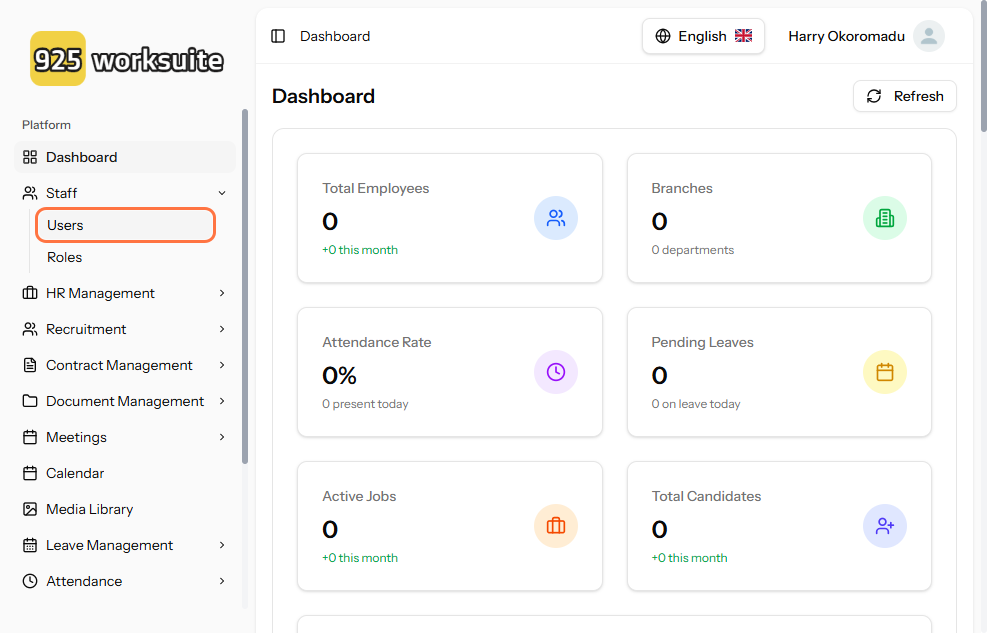
- From the dashboard, click on Users
- This will open the user management section where all team members are listed
Step 2: Start Adding a New User
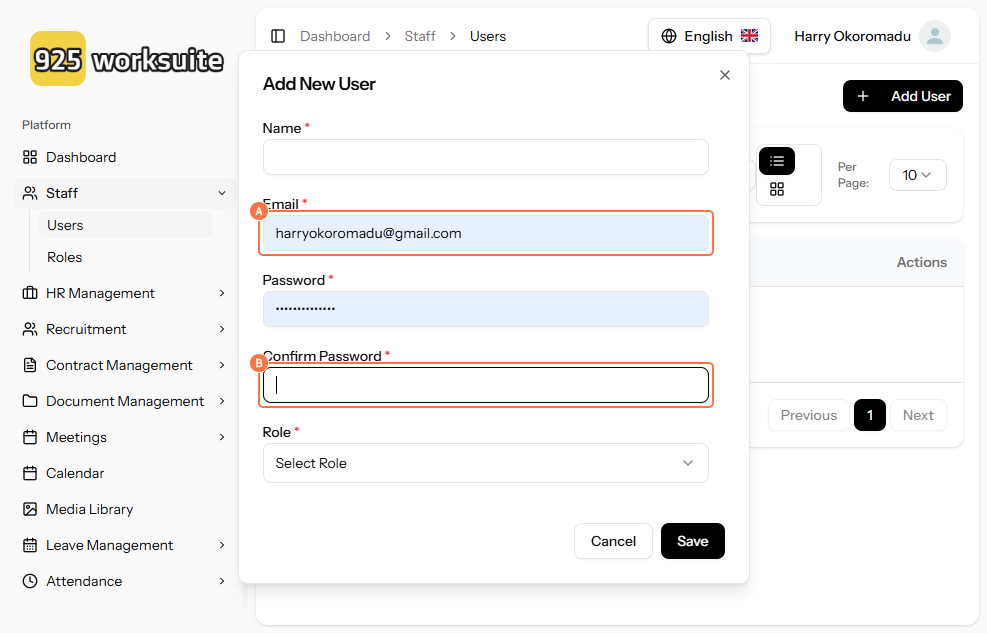
- Click on Add User
-
Enter the following details:
- Email Address (used for login and notifications)
- Password (temporary or system-generated)
- Name (full name of the user)
Step 3: Confirm User Details
-
Review and update:
- Email field to ensure accuracy
- Password field to confirm proper setup
Step 4: Assign Role and Permissions
- Click on Select Role
- Choose the appropriate role based on responsibilities (e.g., Admin, Manager, Staff)
- Roles determine access levels and responsibility ownership for tasks and deadlines
Step 5: Save the User
- Click Save to create the new user account
- The user will now be able to access the system and be assigned to projects and deadlines
Best Practices for Managing Deadlines
- Assign roles carefully to ensure accountability for deliverables
- Add users as soon as they join a project to avoid delays
- Ensure correct email addresses for timely notifications and updates
- Regularly review user roles to align with project responsibilities
Attached files