How to Add New Role on (925worksuite HRM)
Overview
This guide explains how to create a new role in the Roles section of 925worksuite HRM. Roles define user permissions and responsibilities, ensuring proper access control and clear accountability across projects and deadlines.
Steps
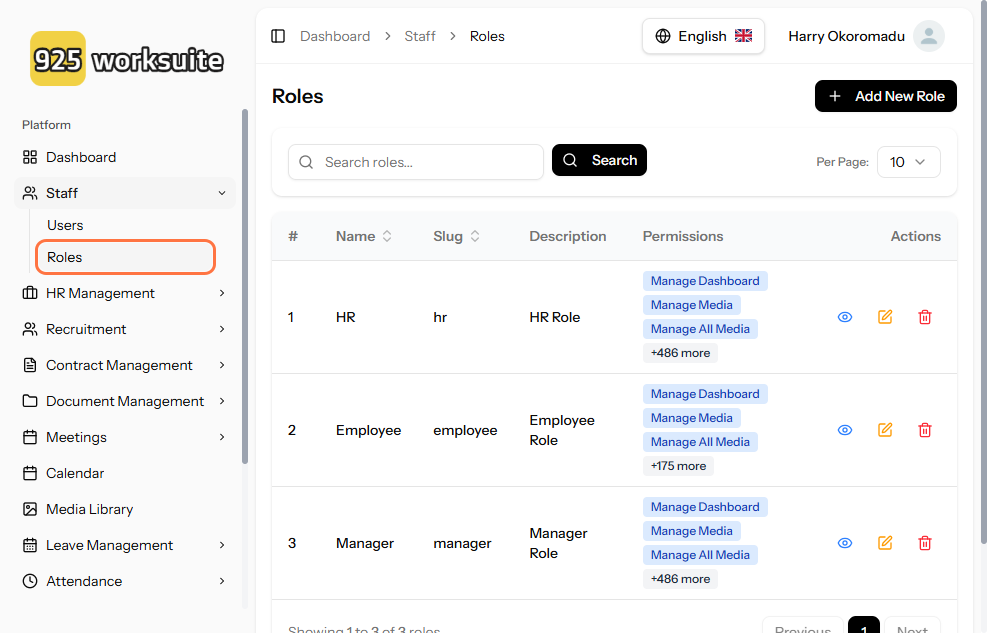
- Go to the HRM Dashboard
- Click on Roles
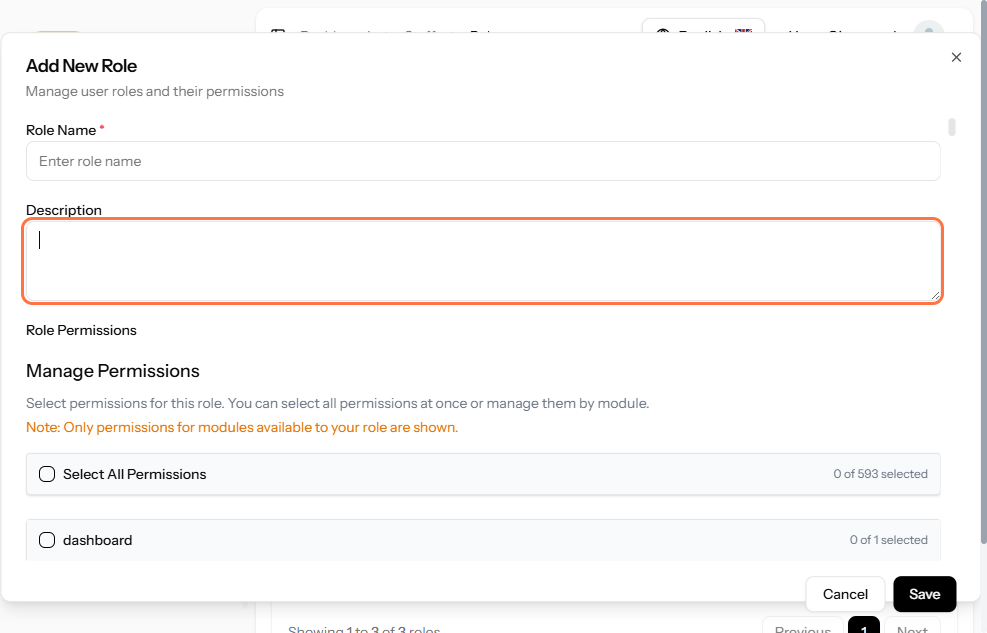
- Click on Add New Role
- Enter the Role Description (e.g., Manager, Sales Executive, HR Officer)
- Click on Manage Permissions
- Select the appropriate permissions based on responsibilities and access needs
- Click Save to create the new role
Expected Result
The new role will be successfully created and available for assignment to users. Users assigned to this role will inherit the selected permissions and access levels.
Common Errors
-
Missing Role Description
→ Ensure the role name/description is filled before saving -
Incorrect Permissions Selected
→ Double-check permissions to avoid access issues or restrictions -
Role Not Saving
→ Confirm all required fields and permissions are properly selected
FAQs
Can I edit a role after creating it?
Yes, roles can be updated later to modify permissions or descriptions.
What happens if I assign the wrong role to a user?
You can update the user’s role at any time from the user management section.
Can multiple users share the same role?
Yes, roles are designed to be assigned to multiple users with similar responsibilities.
Why are roles important?
Roles control access, improve security, and ensure proper responsibility distribution for tasks and deadlines.