Knowledge Article
How to Create a Product and manage inventory in 925POS
0
0
Overview
This guide explains how to create a new product and manage inventory in 925POS. Adding products correctly ensures accurate inventory tracking, pricing, and smooth sales operations.
Step-by-Step Guide
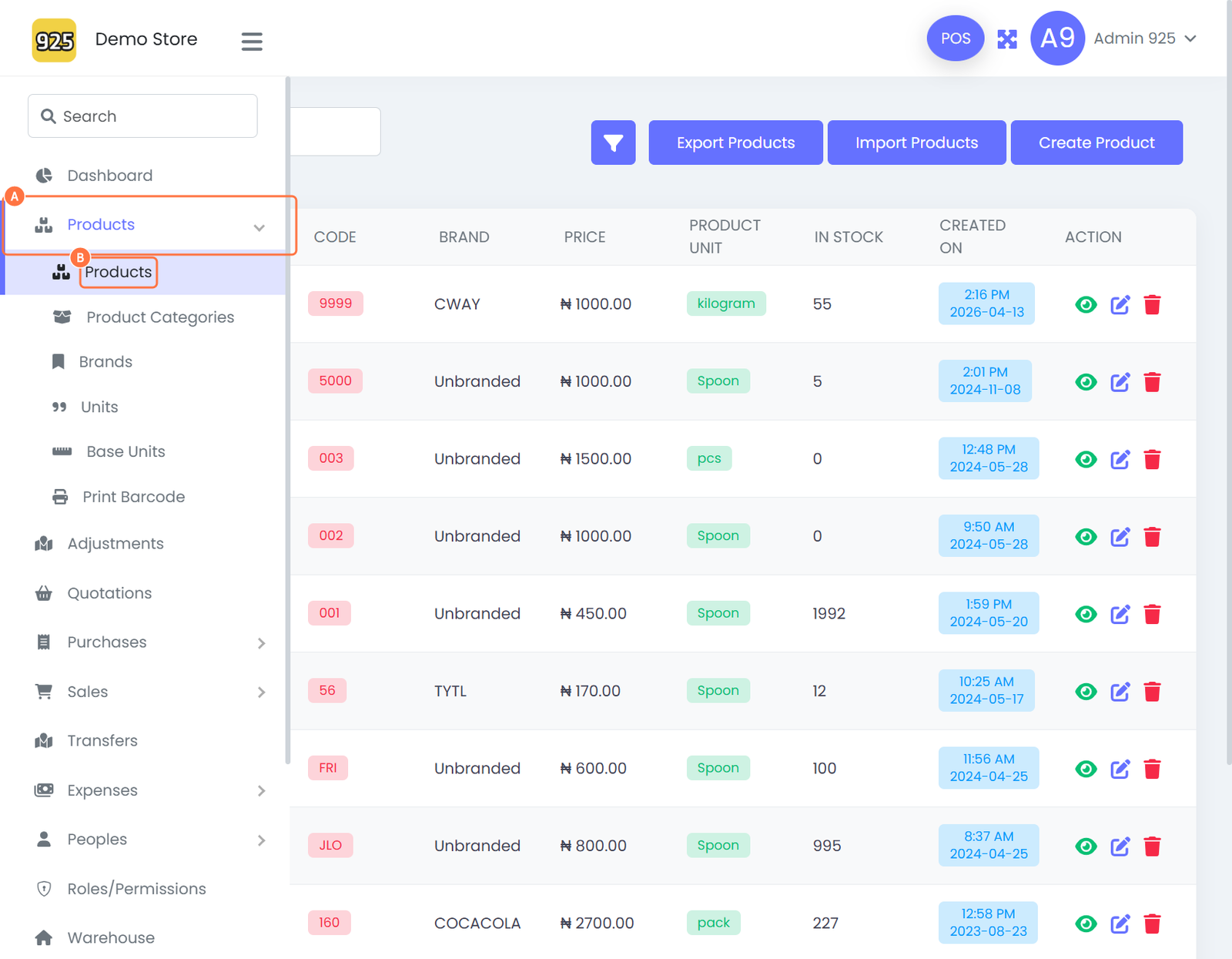
Step 1: Navigate to Products
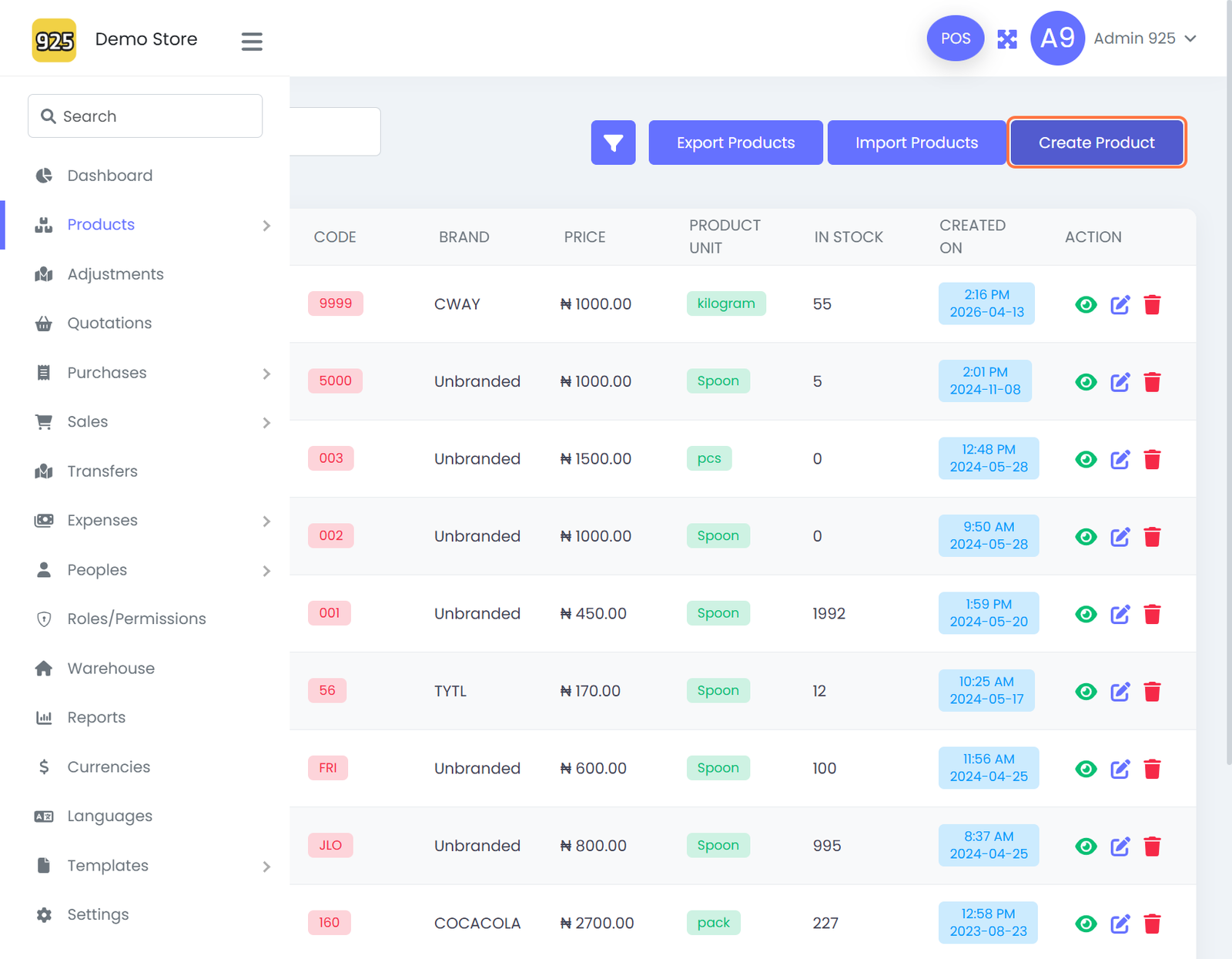
- From the dashboard, click on Products
- Click on Products again from the dropdown menu
Step 2: Create a New Product
- Click on Create Product
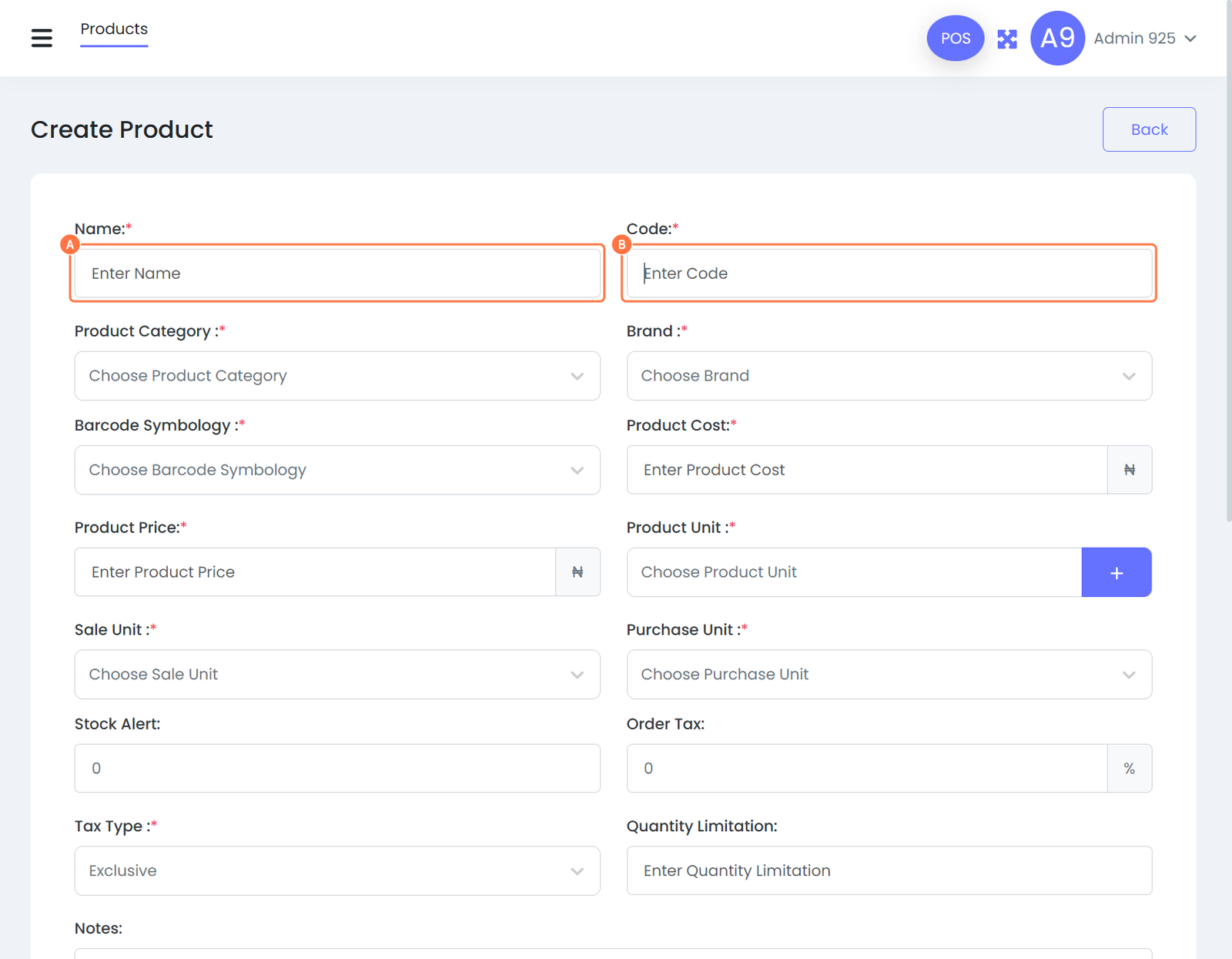
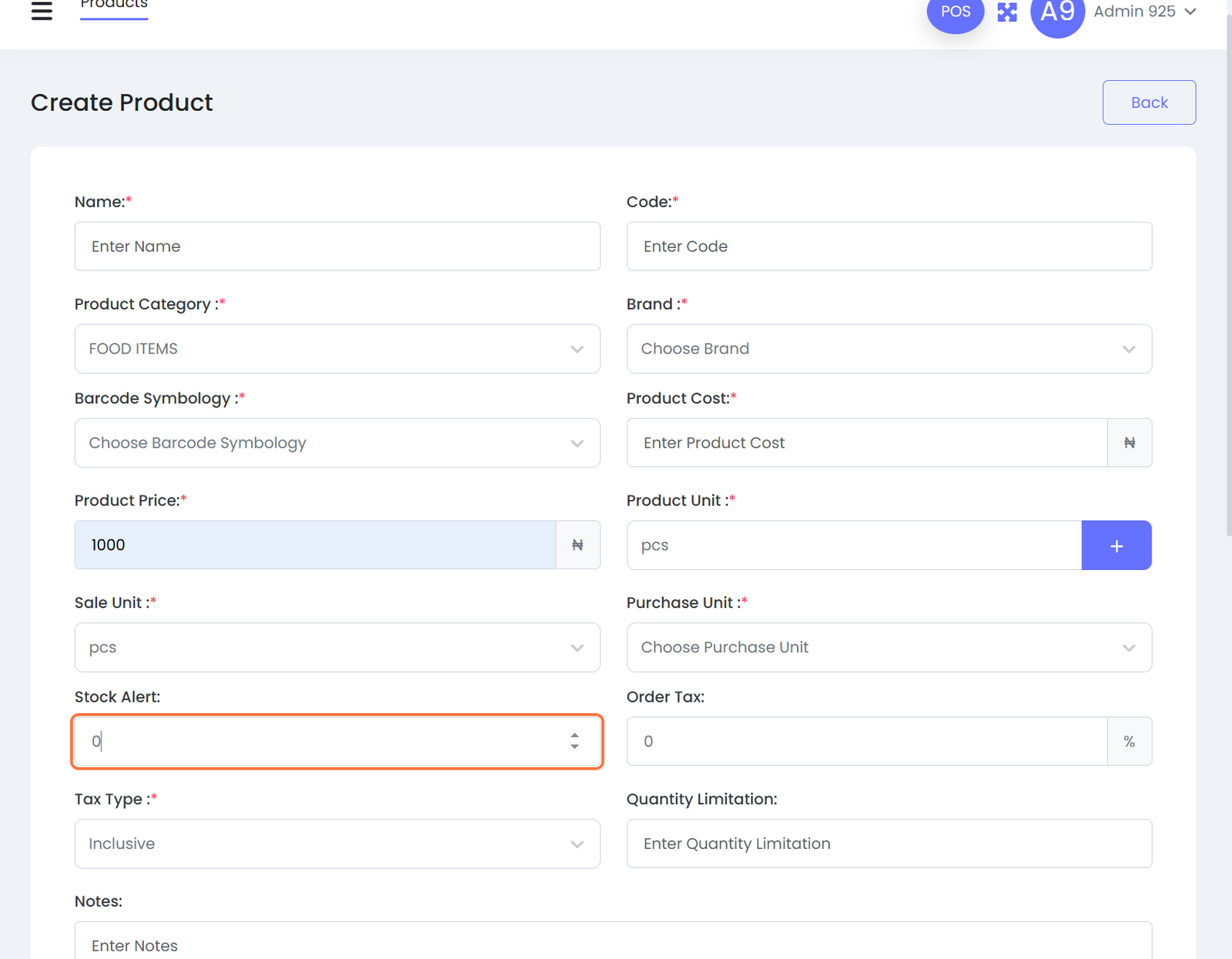
Step 3: Enter Basic Product Details
- Input the Product Name
- Enter the Item Code
Step 4: Select Product Category
- Choose a Product Category
- Note: The category must be created beforehand to appear in the dropdown
Step 5: Enter Product Cost
- Click on the Product Cost field
- Enter the cost value of the product
Step 6: Select Product Unit
- Click on Choose Product Unit
- Select the appropriate unit
- Note: Product units must be created beforehand
Step 7: Select Sale Unit
- Click on Choose Sale Unit
- Select the appropriate unit for selling
- Note: Sale units must be created beforehand
Step 8: Configure Tax and Quantity Settings
- Enter the Order Tax
- Set Quantity Limitation if applicable
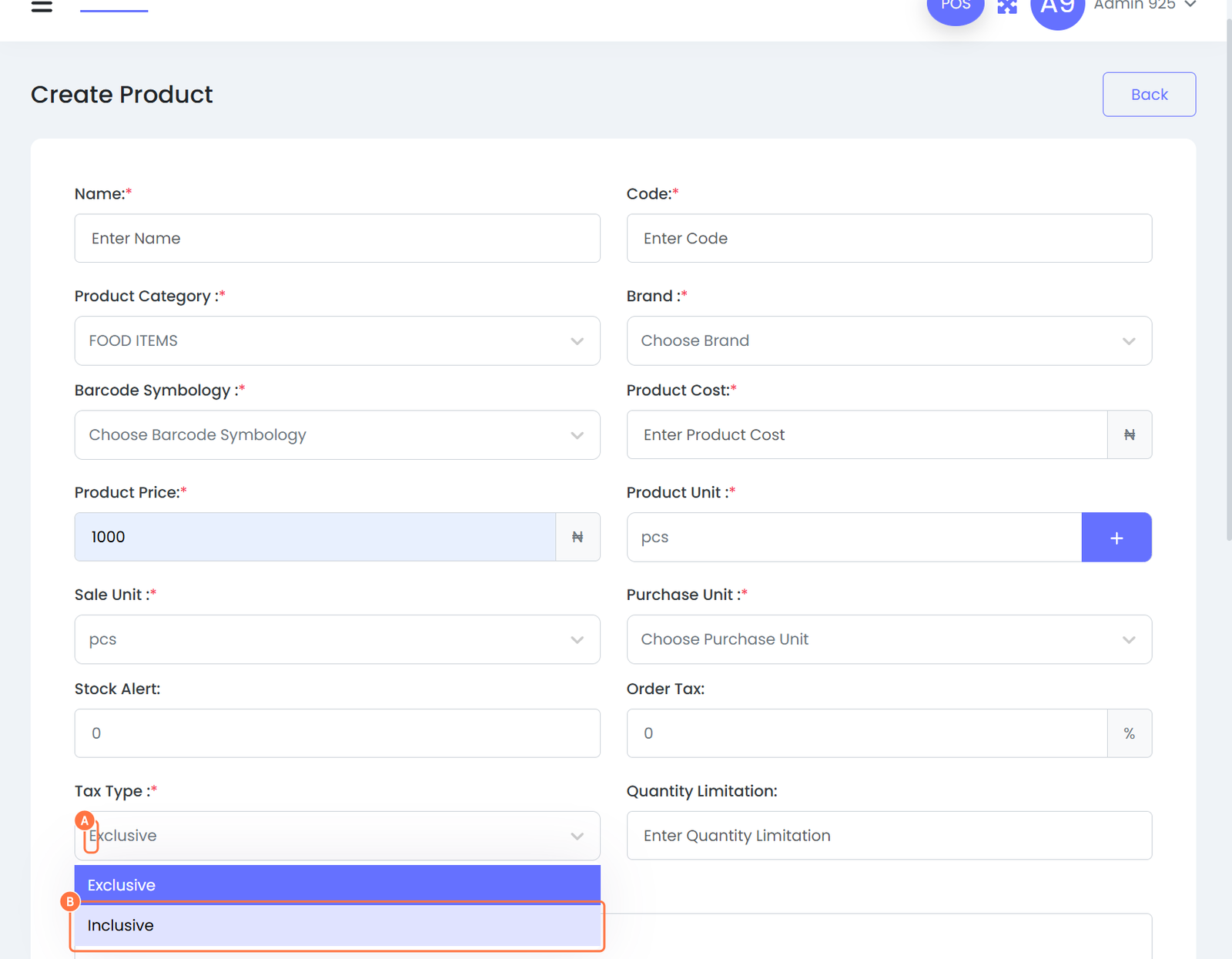
Step 9: Select Tax Type
-
Choose the Tax Type
- Inclusive (tax included in price)
- Exclusive (tax added separately)
Step 10: Upload Product Image (Optional)
- Click on Product Image
- Upload an image for easy identification
Step 11: Assign Warehouse
- Select the Warehouse
- Note: The warehouse must be created beforehand
Step 12: Add Stock
- Click on Add Stock
- Enter the available quantity for the product
Step 13: Set Stock Alert
- Click on Stock Alert
- Enter the minimum quantity level
Stock Alert Definition:
Stock alert is the minimum quantity you set for a product, at which the system notifies you that the item is running low or out of stock, so you can take action quickly.
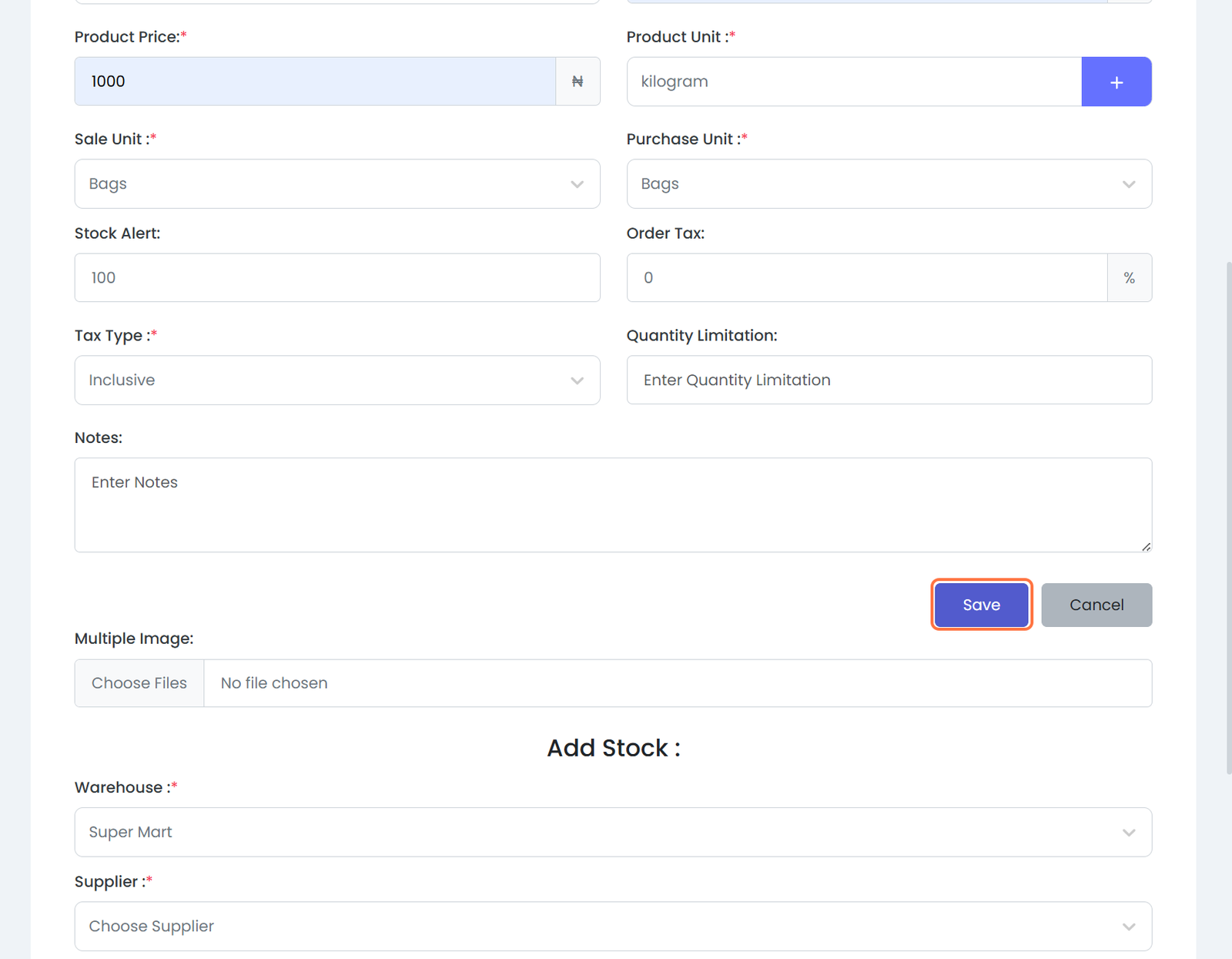
Step 14: Save the Product
- Click on Save to complete the process
Best Practices
- Always create categories, units, and warehouses first before adding products
- Use clear product names and item codes for easy tracking
- Set stock alerts for fast-moving items
- Upload images to improve product identification during sales
Expected Outcome
After saving:
- The product has been successfully added to the inventory
- Stock levels are tracked automatically
- The product becomes available for sales transactions
Attached files