How to Delete Employee in HR (925Worksuite ERP)
Overview
This guide explains how to delete an employee record from the HR module. This action permanently removes the employee from the system, so it should be used carefully.
Steps
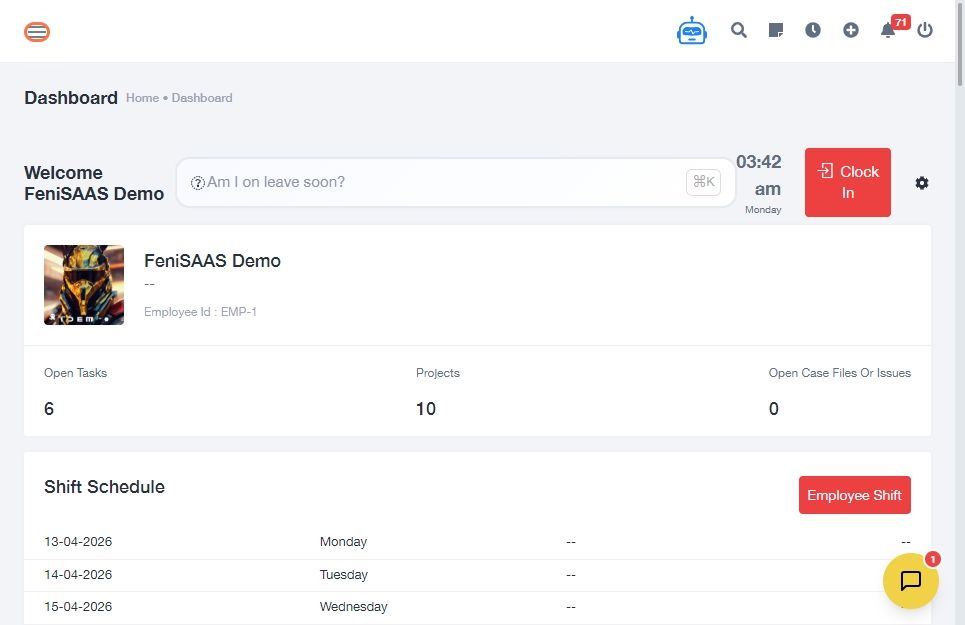
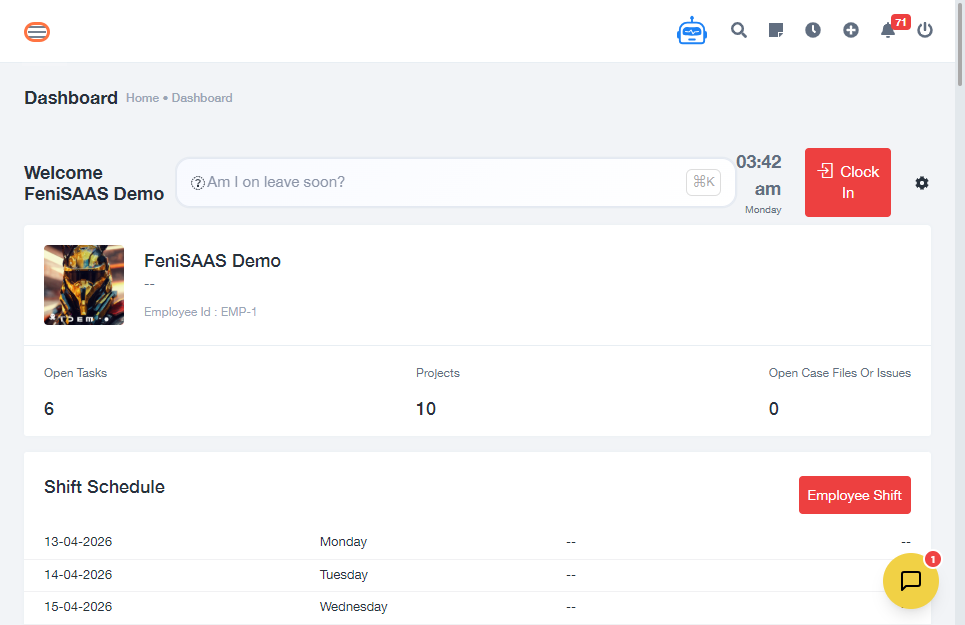
- Go to the Dashboard
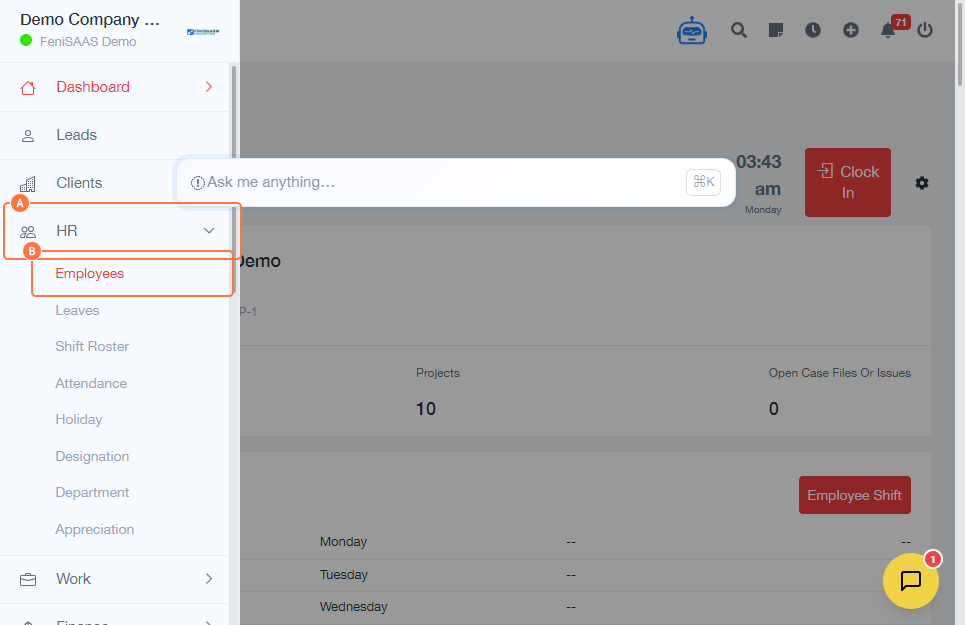
- Open the side menu and click on HR
- Click on Employees
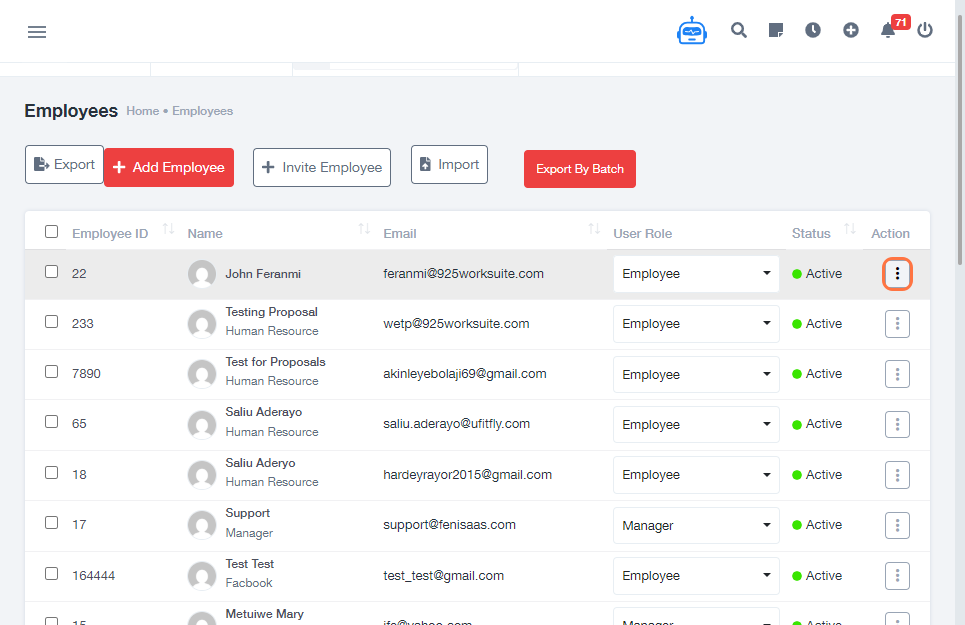
- Locate the employee you want to remove
- Click on the Options/Action menu (three dots or link)
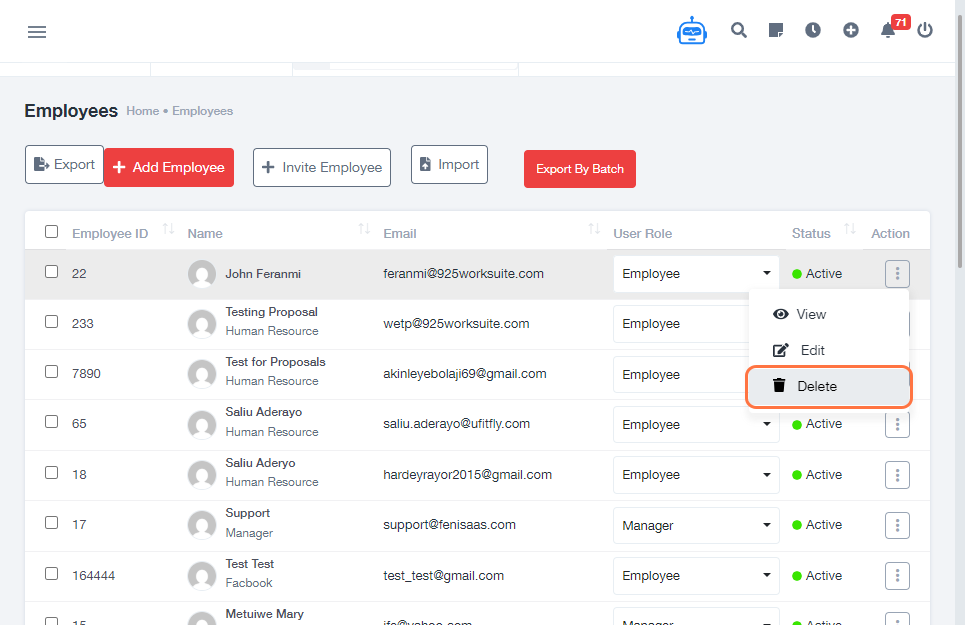
- Click on Delete
- Confirm the deletion (if prompted)
Expected Result
The selected employee will be permanently removed from the system and will no longer appear in the employee list.
Common Errors
- Deleting the wrong employee due to similar names
- Lack of permission to delete employees
- Employee linked to payroll or records preventing deletion
- Accidentally clicking delete without confirming the correct record
FAQs (Search Boost Section)
1. How do I delete an employee in HR?
Go to HR → Employees → Select employee → Click Delete.
2. Can I recover a deleted employee?
No, once deleted, the employee record cannot be recovered.
3. Why can’t I delete an employee?
You may not have permission, or the employee may be linked to payroll or other records.
4. Is deleting an employee the same as deactivating?
No, deleting removes the record permanently, while deactivating keeps the data but disables access.
5. What should I do before deleting an employee?
Ensure all payroll, attendance, and records are properly handled before deletion.