How to Export Employees in HR (925Worksuite ERP)
Overview
This guide explains how to export employee data from the HR module. You can export all employee records at once or export them in batches for easier data handling and reporting.
Steps
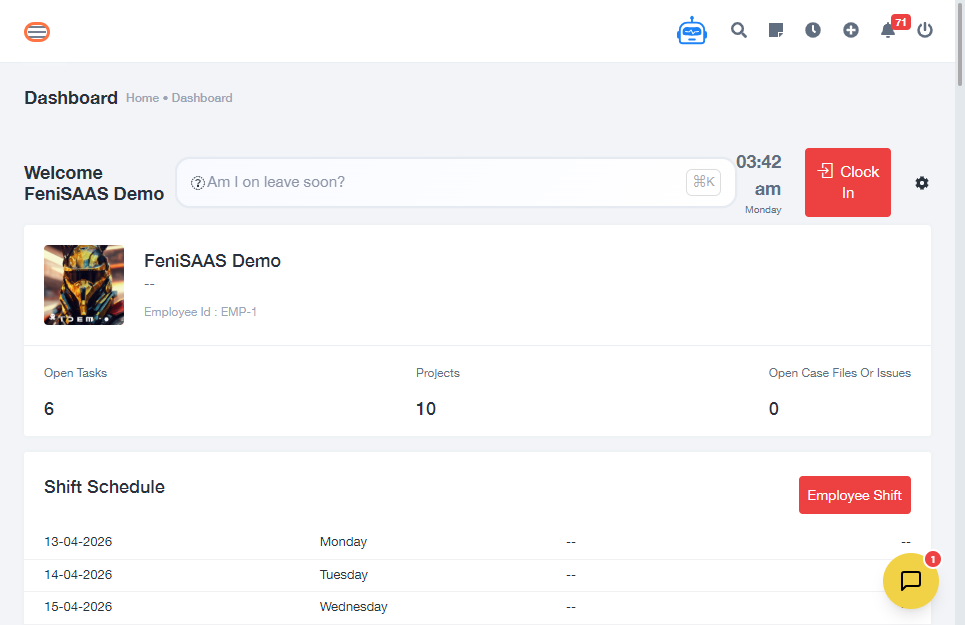
- Go to the Dashboard
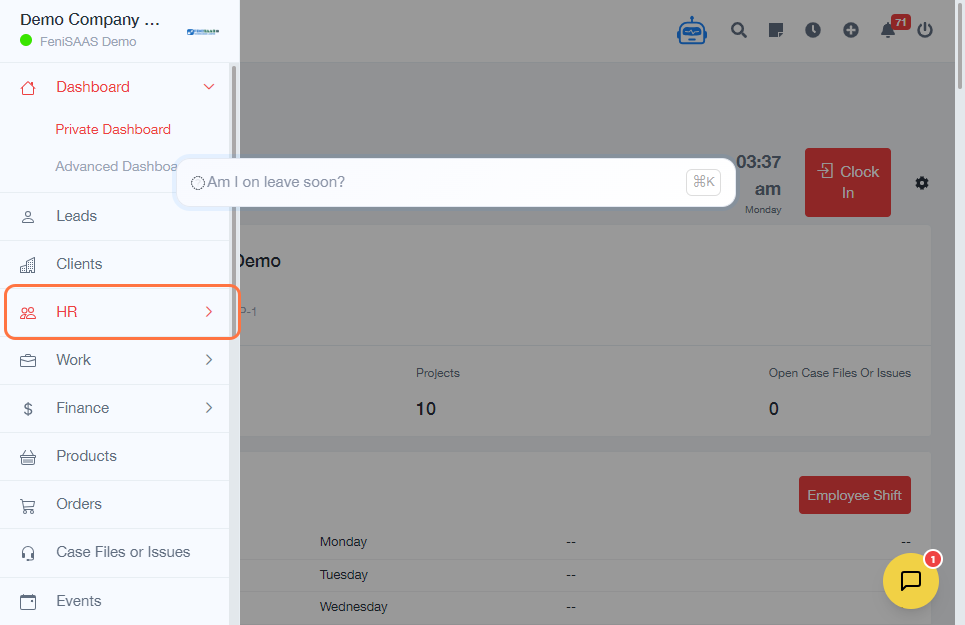
- Open the side menu and click on HR
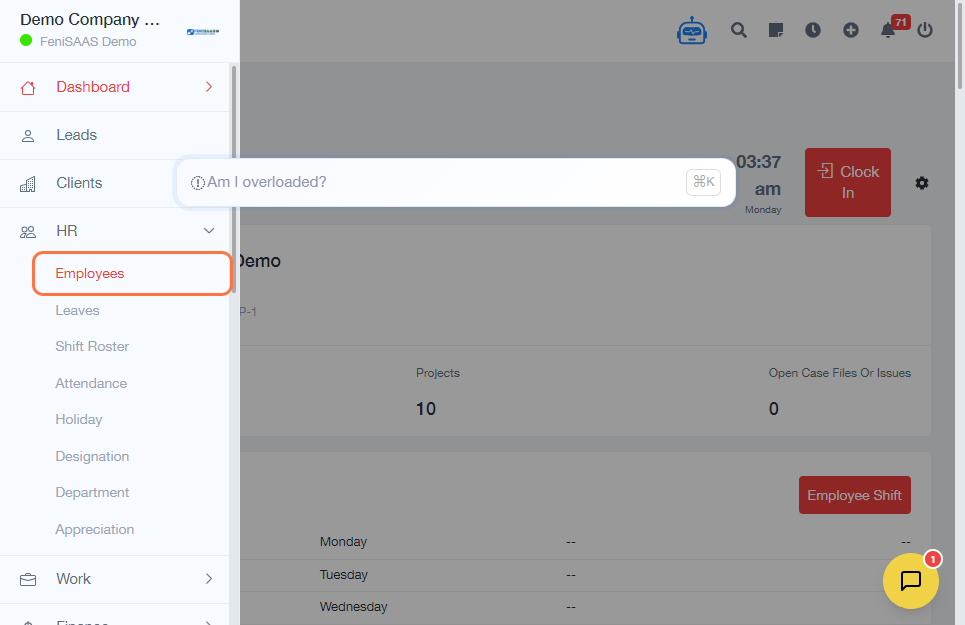
- Click on Employees
-
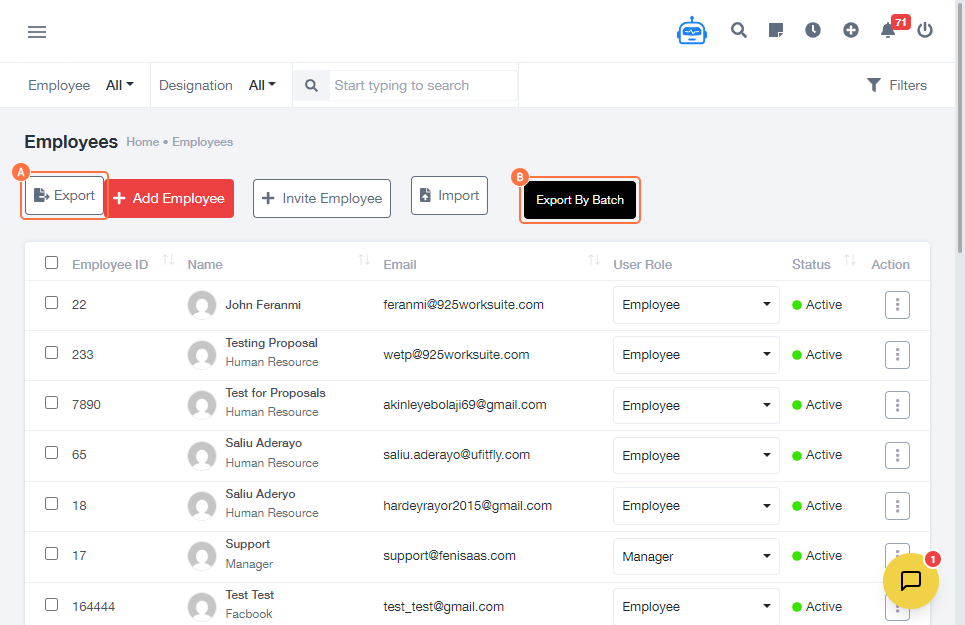
Choose an export option:
- Click on Export to download the full employee list
- Click on Export by Batch to download employee data in smaller groups
Expected Result
The employee data will be successfully exported and downloaded to your device in a file format suitable for reporting or external use.
Common Errors
- Export button not visible due to permission restrictions
- Large data sets causing slow download or timeout
- Download blocked by browser settings
- Selecting the wrong export option (full export vs batch export)
FAQs (Search Boost Section)
1. How do I export employee data?
Go to HR → Employees → Click Export or Export by Batch.
2. What is the difference between Export and Export by Batch?
Export downloads all employee records, while Export by Batch splits the data into smaller groups.
3. Why is my export not downloading?
Check your browser settings or ensure you have permission to export data.
4. Can I export only selected employees?
Use Export by Batch if available or apply filters before exporting (if supported).
5. What format is the exported file?
Typically, employee data is exported in Excel or CSV format.