Knowledge Article
How to Add Company on MSM
0
0
Overview
This guide explains how to add a new company in MSM. It covers both Core and Professional company setup, including required details such as company name, contact information, and domain configuration.
Steps
- Go to the MSM dashboard
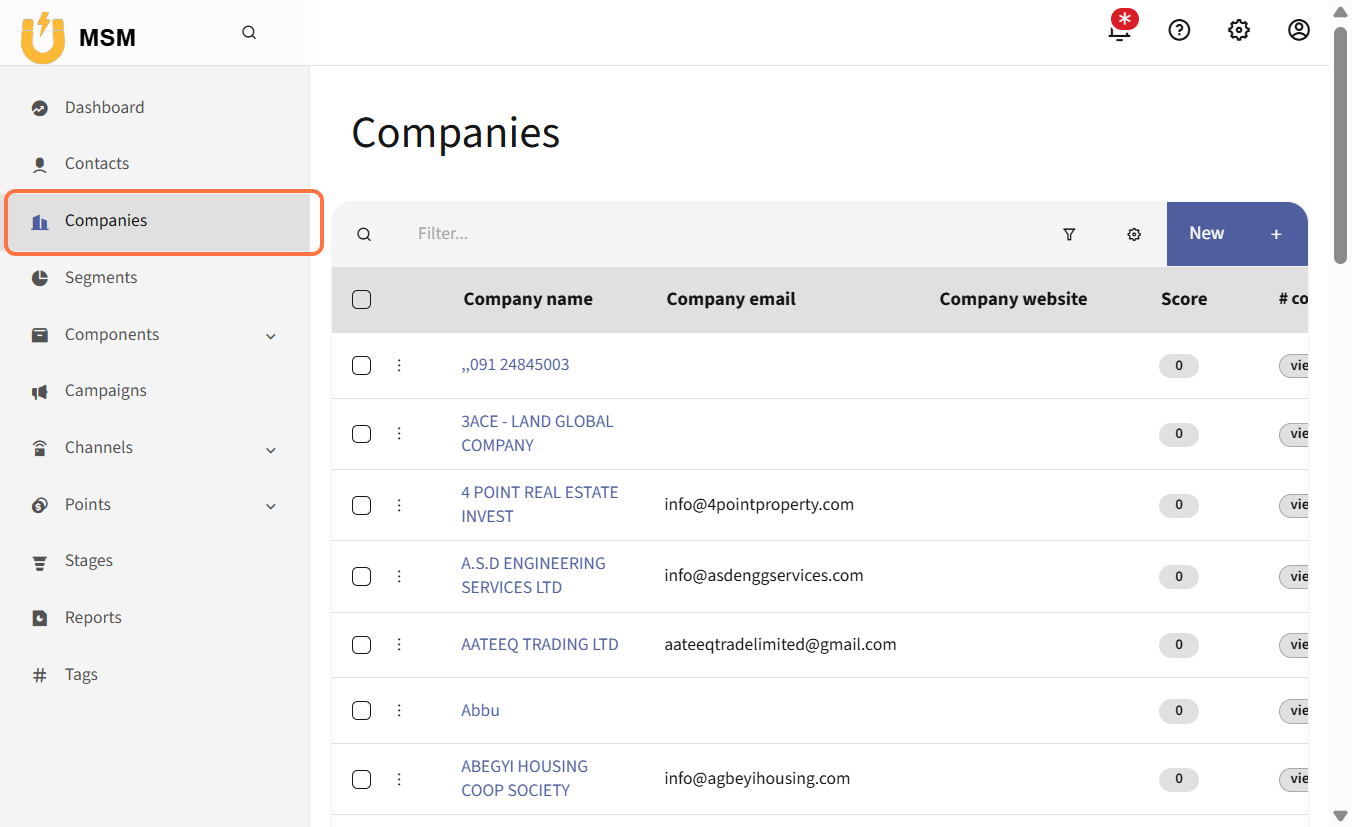
- Click on Companies
- Click on New
-
Select company type
- Choose Core or Professional
-
If Core is selected
- Enter Company Name
- Enter Company Email
- Enter company address and other required details
- Enter phone number and website
- Click Save & Close
-
If Professional is selected
- Enter Domain Name
- Fill in additional required details
- Click Save & Close
Expected Result
The new company will be successfully created and listed under the Companies section in MSM.
Common Errors
- Missing required fields such as company name or email
- Invalid email format
- Domain name not entered for Professional setup
- Duplicate company entry
- Incorrect phone or website format
FAQs
-
Can I create both Core and Professional companies
Yes, you can choose based on your business needs during setup -
What is the difference between Core and Professional
Core requires basic company details while Professional includes domain configuration and extended setup -
Can I edit company details after creation
Yes, you can update company information from the Companies section -
Why is my company not saving
Ensure all required fields are filled correctly and no duplicate exists -
Is domain mandatory for all companies
No, it is only required for Professional company setup