How to Add New Branch in (925Worksuite HRM)
Overview
This guide explains how to add a new branch in the HRM module of 925Worksuite. Creating branches helps organize employees by location, improves operational structure, and ensures better assignment of responsibilities and project tracking across different offices.
Steps
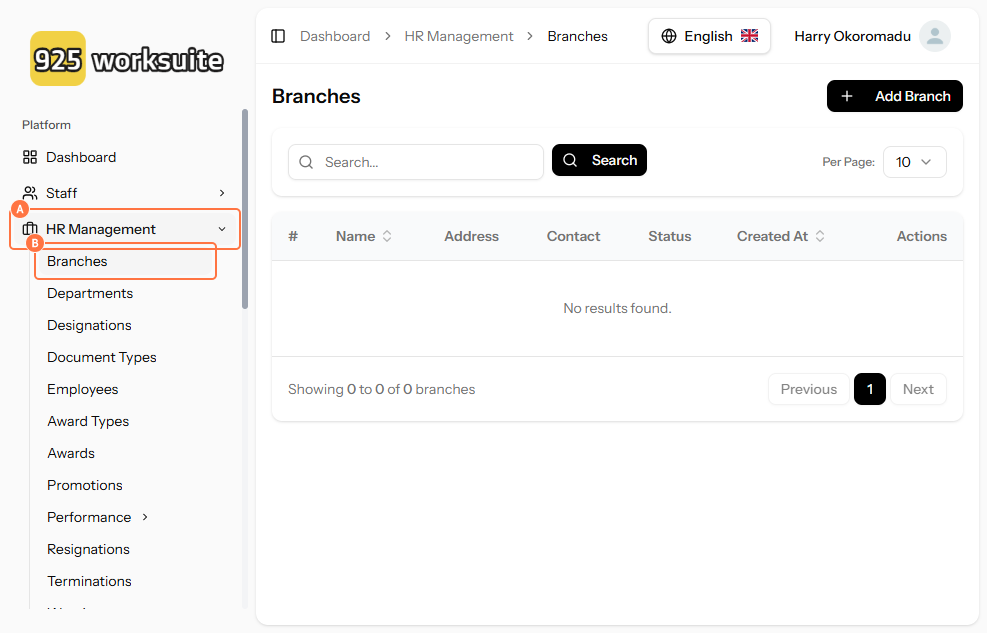
- Go to the HRM Dashboard
- Click on HR Management
- Click on Branches
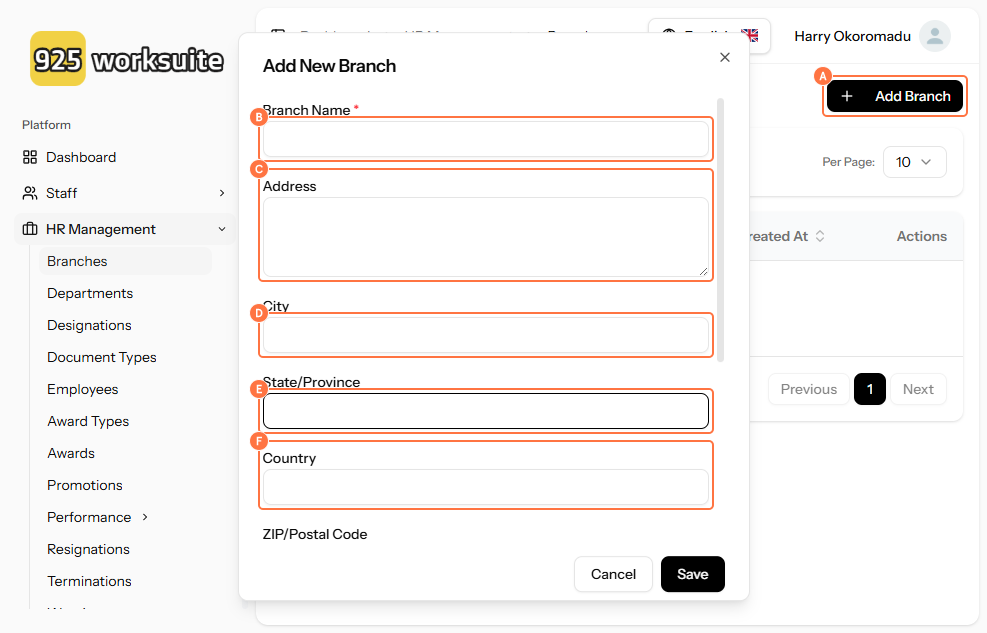
- Click on Add Branch
-
Enter the following details:
- Branch Name
- Address
- City
- State/Province
- Country
- Review the entered information for accuracy
- Click Save to create the new branch
Expected Result
The new branch will be successfully created and listed in the Branches section. It will be available for assigning employees, managing locations, and organizing workflows.
Common Errors
-
Missing Required Fields
→ Ensure all branch details (especially name and location) are filled -
Incorrect Location Information
→ Double-check city, state, and country for accuracy -
Branch Not Saving
→ Confirm all mandatory fields are completed before clicking save
FAQs
Can I edit a branch after creating it?
Yes, you can update branch details anytime from the Branches section.
Why should I create multiple branches?
Branches help organize employees by location and improve management of teams and responsibilities.
Can employees be assigned to a branch?
Yes, employees can be linked to specific branches for better tracking and reporting.
What happens if I enter the wrong branch details?
You can edit the branch information later to correct any mistakes.