How to Add Designation in HR Management (925Worksuite HRM)
Overview
This guide explains how to add a new designation in the HR Management module of 925Worksuite HRM. Designations help define employee roles and align them with departments for better organizational structure and reporting.
Steps
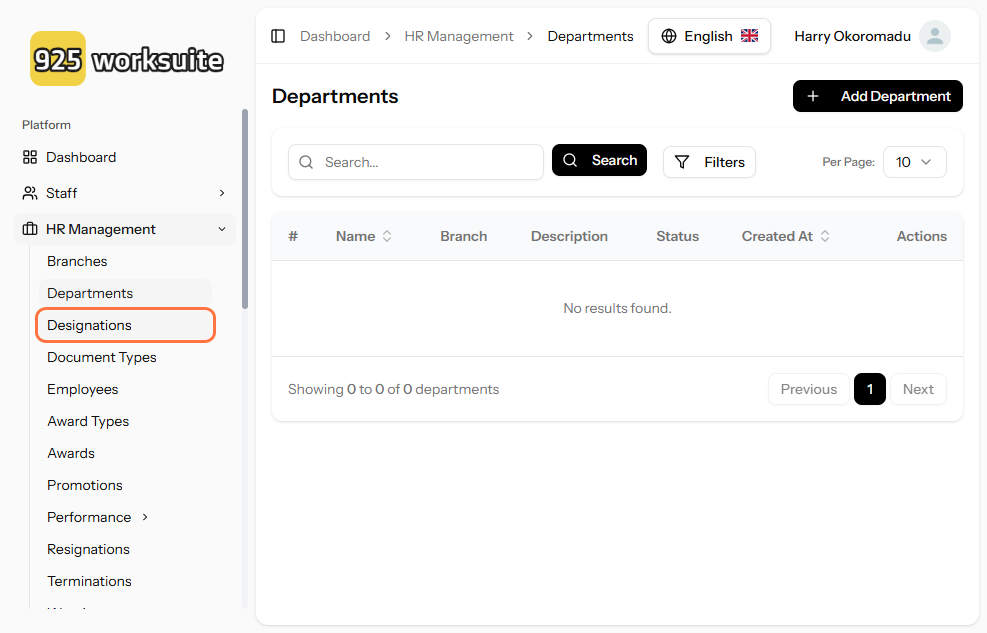
- Navigate to the HR Management module
- Click on Designations
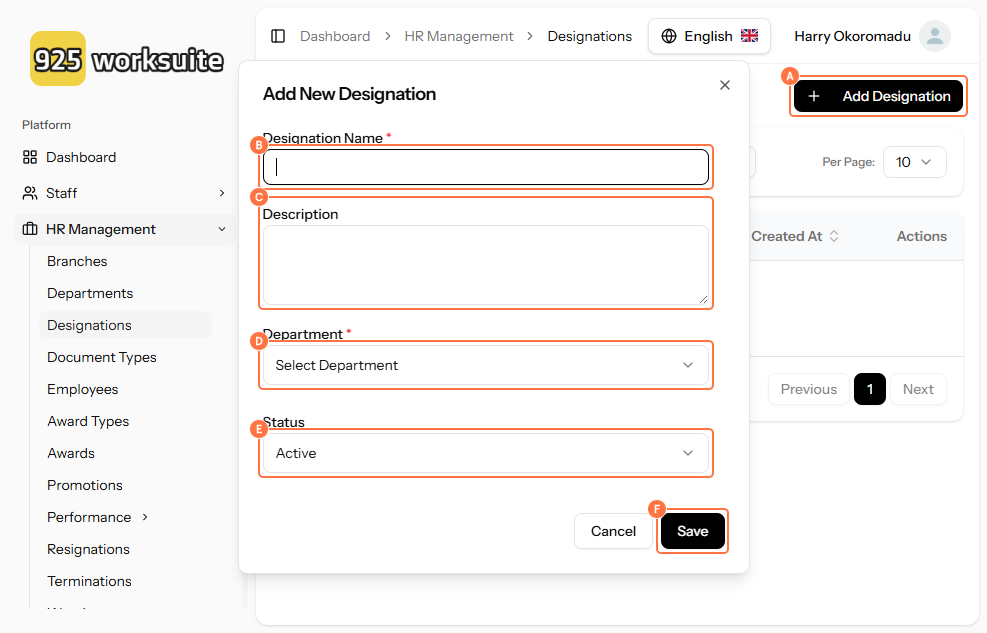
- Click on Add Designation
- Enter the Designation Name
- Add a Description (optional but recommended)
- Select the appropriate Department
- Set the designation status to Active
- Click on Save
Expected Result
The new designation will be successfully created and assigned to the selected department. It will now be available when assigning roles to employees.
Common Errors
-
Missing designation name
→ Ensure the designation name field is filled before saving -
No department selected
→ A department must be selected for proper classification -
Inactive status selected unintentionally
→ Ensure the designation is marked as Active if it should be usable immediately
FAQs (Search Optimization Section)
Q: Can I edit a designation after creating it?
Yes, you can update the designation details from the Designations list.
Q: What is the difference between a role and a designation?
A designation defines a job title, while a role controls system permissions.
Q: Can I assign multiple departments to one designation?
No, each designation is linked to a single department.
Q: Why is my designation not showing when adding a user?
Ensure the designation is set to Active.
Q: Can I delete a designation?
Yes, but ensure it is not currently assigned to any employee.