How to Add Client in Client Management 925Worksuite ERP
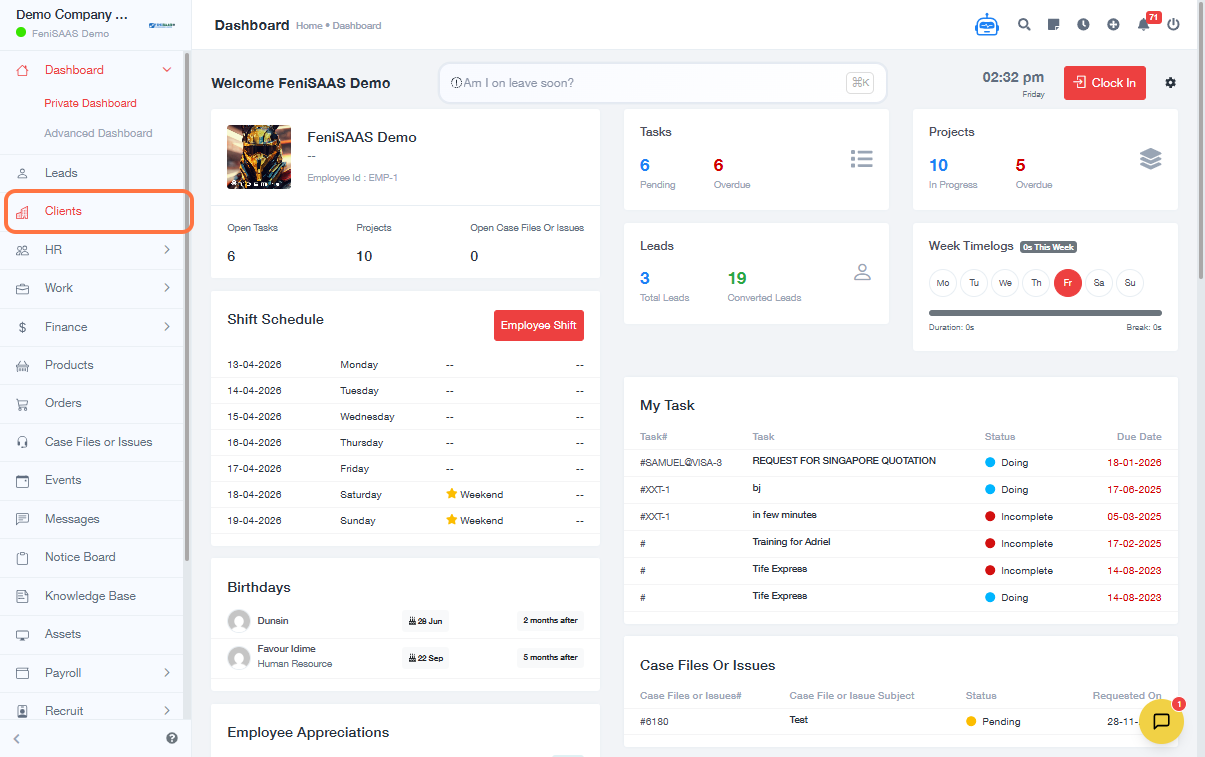
Overview
This guide explains how to add a new client in the Client Management module of 925Worksuite ERP. Adding a client allows you to manage customer records, assign projects, and enable communication within the system.
Steps
- Go to the Clients module from the dashboard
- Click on Add Client
-
Enter basic client details:
- Client Name
- Email Address
- Country
- Mobile Number
- Gender
- Language Preference
-
Configure client settings:
- Enable or disable Email Notifications
- Set Login Access (if client should access the system)
- Select the appropriate Workspace/System
- Click on Company Details
-
Enter additional information:
- Company Address
- Shipping Address
- Notes (optional)
- Click Save
Expected Result
The new client will be successfully created and available in the Clients module for project assignment, communication, and record management.
Common Errors
- Missing required fields (e.g., name or email)
- Invalid email format
- Duplicate client entry
- Login access is enabled without proper configuration
- Incomplete company details
FAQs
1. Can I add a client without an email address?
No, a valid email is typically required for proper communication and record management.
2. Can clients log into the system?
Yes, if Login Access is enabled during setup.
3. Can I edit client details after saving?
Yes, client information can be updated anytime from the Clients module.
4. What happens if I disable email notifications?
The client will not receive system-generated email updates.
5. Can I add multiple clients at once?
No, this process is for adding a single client. Bulk upload requires a different feature.