Knowledge Article
How to Import Client Data in Clients 925Worksuite ERP
0
0
Overview
This guide explains how to import multiple client records into the Clients module using a file upload.
Steps
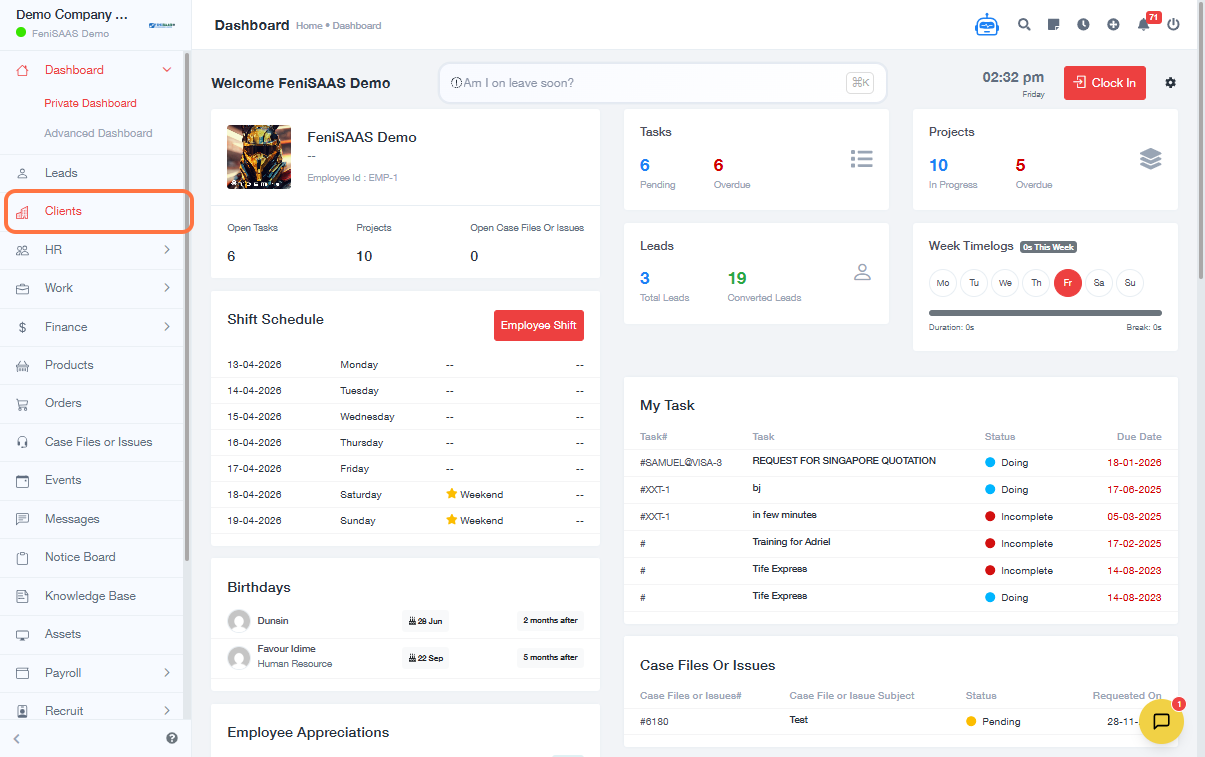
- Go to Clients
- Click on Import
- Upload your client data file
- Select File Contains Headings Row (if applicable)
- Click Upload and Move to Next Step
- Locate the required field Client Name
- Match Client Name with the correct column from your file
- Click on Save
- Click on Edit and select the appropriate value for each column from your file
- Click on Save
- Click on Submit
Expected Result
Client records will be imported successfully and displayed in the Clients list.
Common Errors
• Invalid file format
• Missing required field (Client Name)
• Incorrect column mapping
• Duplicate client records
FAQs
• Can I upload CSV file?
Yes, as long as it matches the required format.
• Why is my import failing?
Check for missing required fields or incorrect file format.
• Can I update existing clients via import?
This depends on system configuration and matching rules.