Knowledge Article
How to Mark Default Holidays in Holiday Management 925worksuite ERP
1
0
Overview
This guide explains how to mark default holidays in the HR module of the 925Worksuite ERP. Default holidays are used to define recurring non-working days such as weekends, ensuring accurate attendance tracking and workforce planning.
Steps
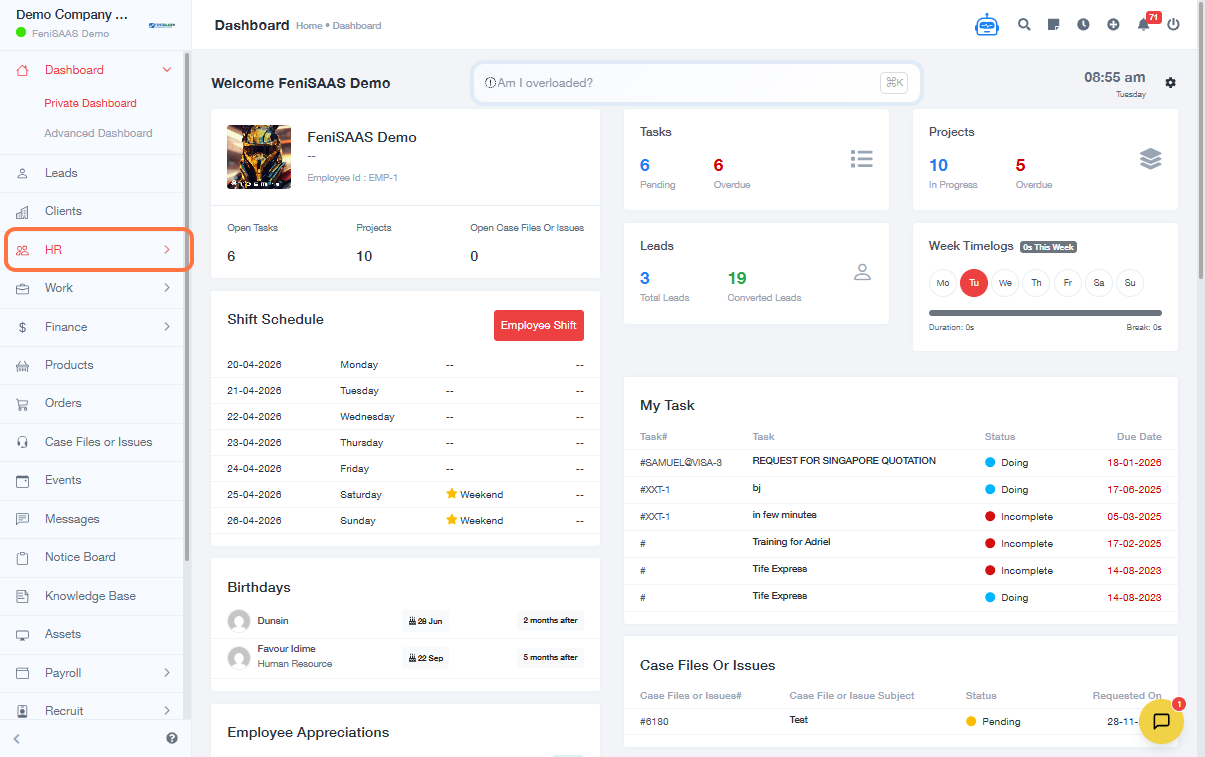
- Go to the HR module
- Click on Holiday
- Select Mark Default Holidays
-
Configure the default holiday settings:
- Select the day(s) (e.g., Saturday, Sunday)
- Enter the occasion (e.g., WEEKEND)
- Click Save
- On the confirmation prompt, click Yes, Save It
Expected Result
- The selected days will be saved as default holidays
- These days will automatically be treated as non-working days in the system
- Attendance and scheduling will reflect the configured holidays
Common Errors
-
Days not selected
→ Ensure at least one day is selected before saving -
Holiday not applied
→ Confirm you clicked Yes, Save It on the confirmation prompt -
Incorrect day selected
→ Double-check selected days before saving -
Missing occasion name
→ Ensure an occasion (e.g., WEEKEND) is entered
FAQs
Q1: What are default holidays?
Default holidays are recurring non-working days such as weekends.
Q2: Can I select multiple days?
Yes, you can select multiple days (e.g., Saturday and Sunday).
Q3: Can I edit default holidays later?
Yes, you can update or modify the selected days at any time.
Q4: Do default holidays affect attendance?
Yes, they automatically mark those days as non-working in attendance records.