Manage Timers for Tasks and Project in 925worksuite ERP
Overview
This guide explains how to manage timers for tasks and project using the timer feature in the 925 Worksuite ERP system. The timer function allows users to track time spent on tasks, while the memo feature enables you to add short notes or descriptions for better task tracking and accountability.
Steps
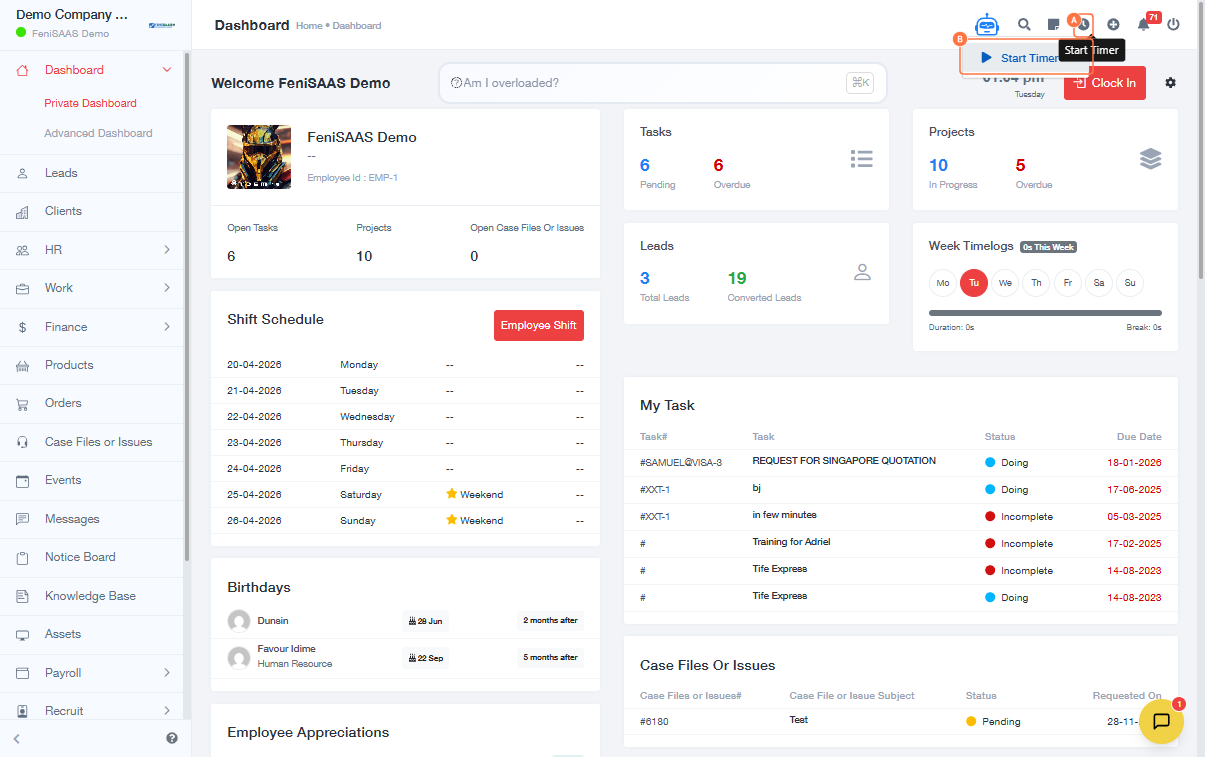
- Click on the Timer icon located at the top-right corner of the navigation bar.
- Click on Start Timer.
- Click on the Task field to select an existing task.
- Select the task you want to track.
- (Optional) Click on Create New Task if the task has not yet been created.
- Click on Memo and enter a short note, description, or reminder related to the task.
- Click on Start Timer to begin tracking time.
- Click on Pause Timer if you need to temporarily stop tracking without ending the session.
- Click on Stop Timer once the task is completed.
Expected Results
- The timer starts and tracks time accurately for the selected task.
- A memo is successfully attached to the timer entry.
- Time logs are saved for reporting, billing, or productivity tracking purposes.
Common Errors
- No task selected: Timer may not start or may not be linked to a task.
- Forgetting to stop the timer: Leads to inaccurate time tracking.
- Memo not added: Loss of important context or task details.
- Creating duplicate tasks: Instead of selecting an existing one.
FAQs
Q1: Can I track time without selecting a task?
No, it is recommended to select or create a task to ensure proper tracking and reporting.
Q2: What is the purpose of the memo field?
The memo field is used to add short notes, descriptions, or reminders for the tracked task.
Q3: Can I pause and resume a timer?
Yes, you can pause the timer and resume it later without losing tracked time.
Q4: What happens after I stop the timer?
The recorded time is saved and can be used for reporting, billing, or performance tracking.