Knowledge Article
How to Create a Warehouse in 925POS
0
0
Overview
This guide explains how to create a warehouse in 925POS. Warehouses help you organize and manage stock across different locations, making inventory tracking more accurate and efficient.
Step-by-Step Guide
Step 1: Navigate to Warehouse
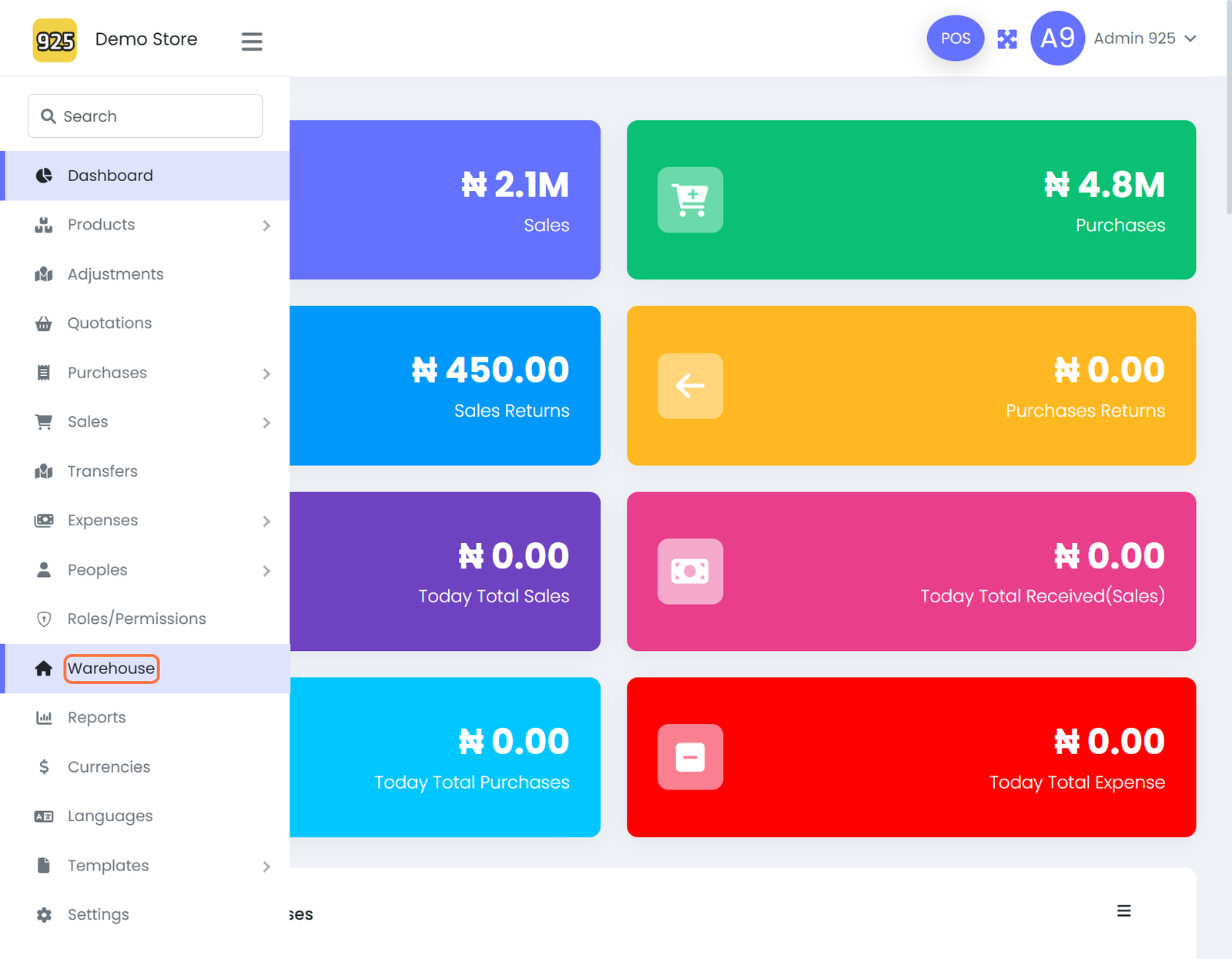
- From the dashboard, click on Warehouse
Step 2: Create a New Warehouse
- Click on Create Warehouse
Step 3: Enter Warehouse Details
-
Fill in all required fields, such as:
- Warehouse Name
- Location (if applicable)
Step 4: Save the Warehouse
- Click on Save to create the warehouse
Best Practices
- Use clear and identifiable names (e.g., “Main Store”, “Lekki Branch Warehouse”, "Stores within")
- Create separate warehouses for each physical location or storage point
- Ensure consistency in naming for easy reporting and tracking
Expected Outcome
After completing these steps:
- The warehouse is successfully created
- It becomes available for product allocation and stock tracking
- You can manage inventory across multiple locations efficiently