Knowledge Article
How to add Employee Promotions on 925worksuite HRM
0
0
How to Add Employee Promotions in 925worksuite HRM
Overview
This guide explains how to record and manage employee promotions in the 925worksuite HRM system. It covers updating an employee’s designation, setting the effective date, and applying any salary adjustments.
Prerequisites
- HR/Admin access to the HRM module
- Existing employee records
- Pre-configured designations in the system
Step-by-Step Guide
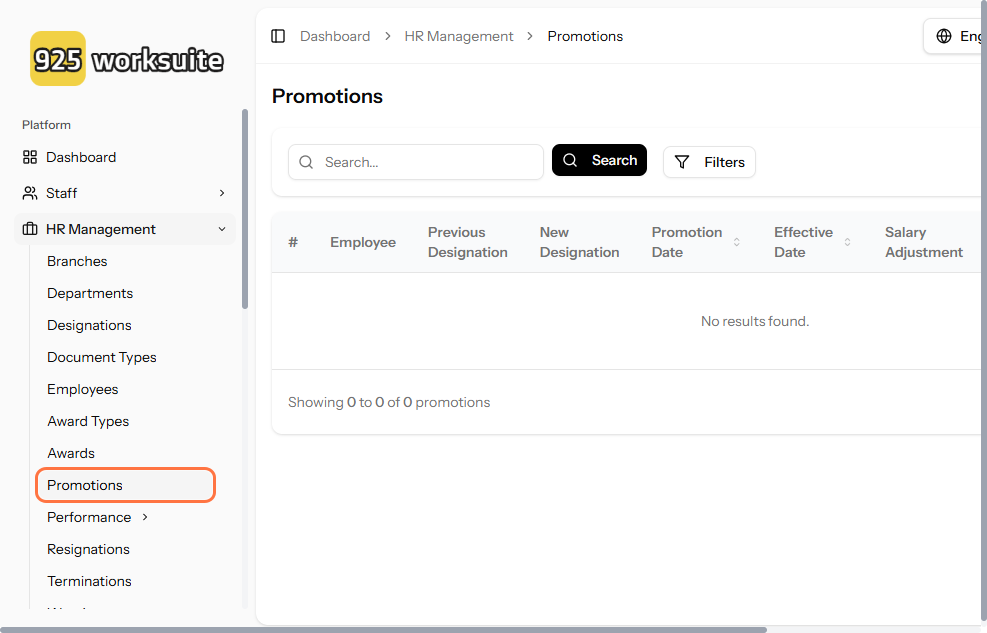
Step 1: Navigate to Promotions
- Go to the HRM dashboard
- Click on Promotions
Step 2: Open the Promotion Form
- (Optional) Click on Toggle Sidebar if the menu is collapsed
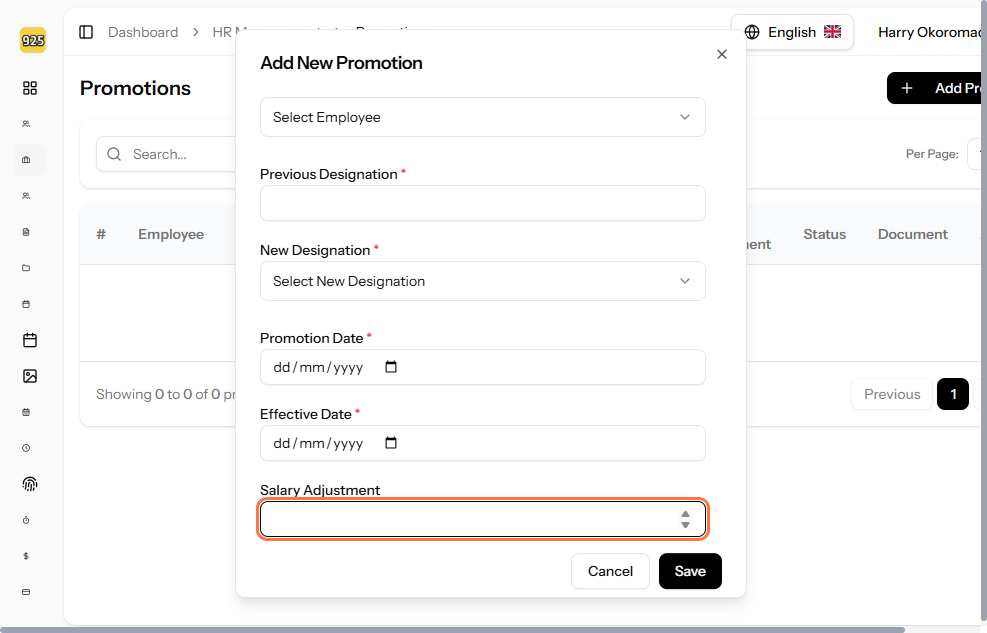
- Click on Add Promotion
Step 3: Enter Promotion Details
Fill in the required fields:
- Previous Designation – Select the employee’s current role
- New Designation – Select the promoted role
- Effective Date – Enter the date the promotion takes effect
Step 4: Add Salary Adjustment
- Click on Salary Adjustment
- Enter the updated salary details (if applicable)
Step 5: Save the Promotion
- Click on Save
- Confirm the action if prompted
Notes & Best Practices
- Ensure the new designation already exists before creating a promotion
- Always verify the effective date to avoid payroll inconsistencies
- Apply salary adjustments carefully to reflect accurate compensation changes
- Maintain a consistent promotion approval process internally before recording in the system
Troubleshooting
- Designation not showing: Confirm it has been created in the Designations module
- Save error: Check that all required fields are completed
- Incorrect promotion details: Edit the promotion record if the system allows, or recreate it
Attached files